 Bytesweep
 A note on paths first. Current Dropbox for macOS runs on Apple’s File Provider, and its folder lives at ~/Library/CloudStorage/Dropbox. Older installs used ~/Dropbox, which is the path in the commands below. If yours is the newer layout, substitute it.
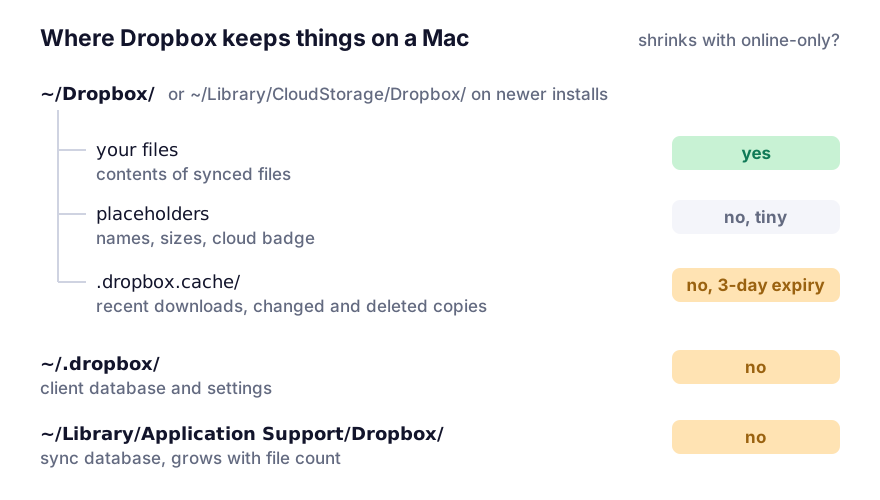
The cache that online-only doesn’t touch
.dropbox.cache sits hidden at the top of the Dropbox folder. It holds recently downloaded content and copies of files you deleted or changed, kept so a re-sync doesn’t have to download them again. Dropbox clears entries older than three days by itself, but on a machine that moves a lot of large files it can hold many gigabytes at any given moment.
du -sh ~/Dropbox/.dropbox.cache ~/.dropbox \
       ~/Library/Application\ Support/Dropbox 2>/dev/null
Deleting what’s inside the cache is safe. It’s a cache in the real sense and Dropbox rebuilds it, at the cost of some re-downloading for files you touch soon after. Quit Dropbox first, or it will recreate files while you delete them.
If the cache is small and the total is still large, look at ~/Library/Application Support/Dropbox. It holds the sync database, which grows with the number of files in the account rather than their size, so an account with hundreds of thousands of small files can have a large one. Don’t delete that one; it’s what Dropbox uses to know what’s synced.
Online-only or Selective Sync
For a large tree, clicking “Make online-only” folder by folder gets tedious. The two features answer different questions:
- Online-only keeps the file in the Finder. Double-click and it downloads. Right for things you open now and then.
- Selective Sync removes the folder from this Mac entirely. Nothing downloads on demand; you’d go to the website. Right for a decade of archives you never touch from this machine.
Selective Sync is reversible. Tick the folder again and it downloads; nothing is removed from the account by unsyncing it here. Dropbox’s File Provider builds have leaned on online-only instead, so if you don’t see Selective Sync under Preferences, Sync, that’s why.
When the folder doesn’t shrink
In rough order of likelihood:
- The eviction is queued. Dropbox works through it in the background, and a big tree takes a while.
- The Finder is showing a cached size.
du -sh ~/Dropboxis the honest figure. - Something has the files open. A search indexer, a backup tool or an app with a document open all block eviction. Quit them and try again.
- The space came back as purgeable rather than free, so
dfmoved and the Finder didn’t. Purgeable space covers how to force it back.
To see what’s actually local, compare each file’s logical size with its allocated blocks. A file with a size and zero blocks is online-only:
find ~/Dropbox -type f -exec stat -f '%z %b %N' {} + 2>/dev/null | awk '$1 > 0 && $2 == 0' | headIf you run Dropbox alongside OneDrive or Google Drive, the same check across every sync client is worth running once. The Finder presents them almost identically, and they each behave a little differently, which is also true of iCloud’s version.
Old versions aren’t on your disk
Dropbox keeps file version history on its servers, not locally. Clearing the cache doesn’t lose versions, and a large Dropbox folder is never explained by old versions. If the folder is large after the checks above, the files really are there.
Online-only files aren’t in your Time Machine backup. Time Machine copies what’s on the disk, and there’s nothing on the disk. If Dropbox holds the only copy, that’s the only copy.
Rather than chasing the folder size, it’s more useful to decide which files should exist somewhere besides Dropbox. What to back up before any cleanup sets that out.
On an external drive, online-only works the same way, but the volume has to be mounted when Dropbox starts. If it isn’t, the client complains and may start a fresh sync, so it suits a drive that never leaves the desk.