 Bytesweep
 How it adds up
du -sh ~/Library/Developer/Xcode/iOS\ DeviceSupport/* | sort -hEach subdirectory is named for an iOS version and build number, sometimes with the device model or an architecture added, and each is typically 1.5 to 7 GB. The part people miss is that updating a phone doesn’t replace its folder. Every point release you install on a device you debug adds a new one alongside the old.
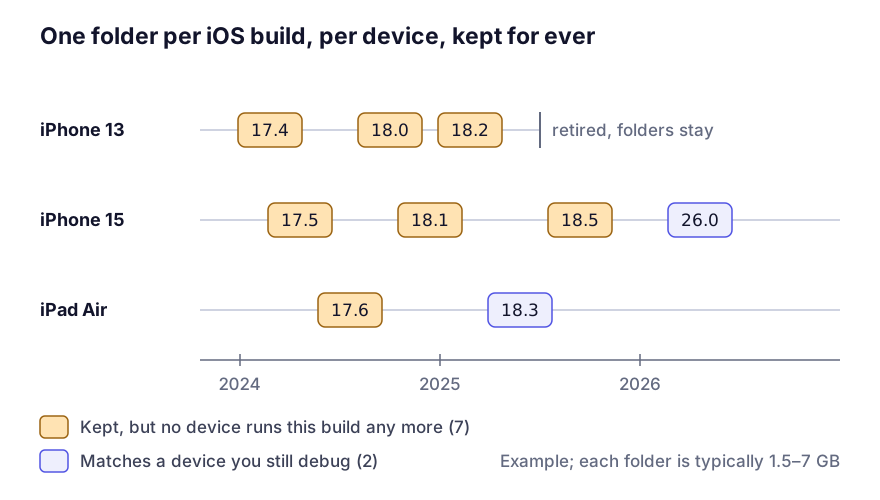
A developer with a couple of test devices ends up with a dozen or more folders within a few years, and 40 GB is not unusual. It also explains the folder named after a device you’re sure you never plugged in: often it’s your own phone under an older build number, or a colleague’s device on a shared machine.
watchOS and tvOS do the same thing in sibling directories. They’re usually smaller only because fewer of those devices get connected:
du -sh ~/Library/Developer/Xcode/*DeviceSupport 2>/dev/nullWhich folders you’d ever need again
A folder holds the dyld shared cache and symbol tables for one iOS build. You need it only to attach a debugger to, or symbolicate a crash from, a device running that exact build. Go through the list with that in mind:
- A device you no longer own: never needed again.
- An iOS version below your deployment target: never needed again.
- A beta build you’ve since updated past: dead weight once the release is out.
- The build currently on your test device: needed, but Xcode recreates it by itself if you delete it.
- Builds your users are still on, if you symbolicate their crash reports locally: the one case worth keeping. If a crash reporting service does the symbolication, you don’t need these either.
There’s no setting that stops Xcode creating these, and you wouldn’t want one, since without them on-device debugging shows addresses instead of symbols. Pruning now and then is the only control you get.
Clearing it
Delete whole version directories; there’s nothing inside one worth picking out. The Finder is fine for this:
open ~/Library/Developer/Xcode/iOS\ DeviceSupportOr remove everything nobody has used for six months:
find ~/Library/Developer/Xcode/iOS\ DeviceSupport -maxdepth 1 -mindepth 1 \
  -type d -mtime +180 -print -exec rm -rf {} +
Quit Xcode first. If you delete the folder for a build that’s still on a device you use, nothing breaks: reconnect it and Xcode prepares it again, which costs a few minutes once.
A DeviceSupport folder you needed costs five minutes to get back. The Archives folder one level up can’t be rebuilt at all, so check you’re in iOS DeviceSupport before running any rm.
The rest of ~/Library/Developer/Xcode
This folder is one of a handful of very large neighbours, and one cleanup session should cover all of them. Typical sizes:
| Folder | Typical size | Safe to delete |
|---|---|---|
DerivedData | 20–60 GB | Yes, entirely (what it is) |
iOS DeviceSupport | 5–40 GB | Yes, by version |
Archives | 2–30 GB | No (the one to keep) |
UserData/Previews | 1–20 GB | Yes (Xcode Previews cache) |
~/Library/Developer/CoreSimulator | 10–80 GB | Yes, selectively (simulators) |
Toolchains | 2–15 GB | Yes, if unused (old toolchains) |
On a Mac that has shipped a few apps these can reach 100 GB together, often more than the rest of the home folder. macOS doesn’t classify any of it, which is why a developer’s Mac shows such a large System Data figure: all of it lands in that grey bar.