 Bytesweep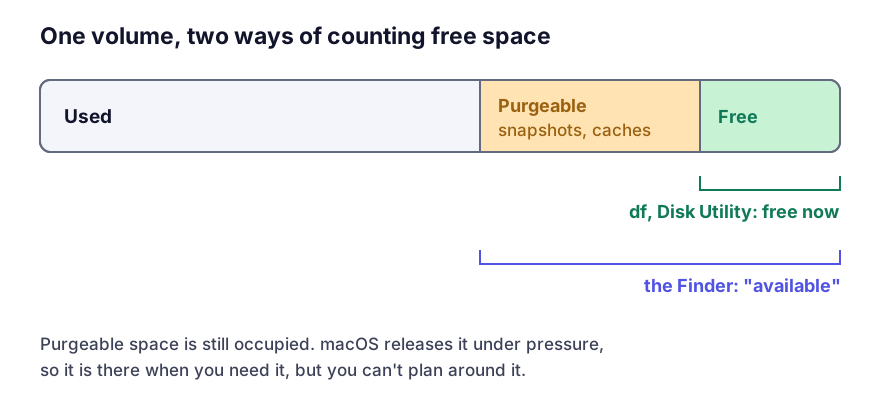
What’s in it
Snapshots, mostly. APFS and Time Machine local snapshots are by far the biggest contributor. A snapshot keeps the old version of every block that has changed since it was taken, which is why deleting a large file while a snapshot exists frees nothing at all.
The rest is local copies of iCloud Drive files that macOS could evict and download again, and caches that apps have registered as discardable through the system’s cache-deletion mechanism. Emptying the Trash turns some of the total into real free space, but it doesn’t touch the snapshots, so it rarely moves the number much.
Swap isn’t part of it. Swap files count as used space, so more RAM means less swap but does nothing for purgeable space.
See all three numbers
df -H /System/Volumes/Data
diskutil info / | grep -i -e "Free Space" -e "Container"
tmutil listlocalsnapshots /
df gives you the honest figure. diskutil reports the container’s free space, which on APFS is shared by every volume in the container. The snapshot list, more often than not, explains the gap.
Why a clean-up seems to do nothing
Snapshots are point-in-time references to the file system. Delete a file while a snapshot exists and its blocks are still referenced, so nothing comes back until the snapshot expires (24 hours later by default) or is deleted.
So on a Mac with local snapshots, cleaning up doesn’t free space until the snapshots roll off. People conclude the clean-up failed, repeat it, and delete far more than they meant to. How local snapshots work and how to thin them has the commands.
Making macOS let go
Create real pressure. This is what the mechanism is designed for. Write a large file, then delete it:
mkfile 30g ~/ballast
rm ~/ballast
macOS sees the demand, purges snapshots and caches to meet it, and the space is free afterwards. mkfile writes every byte, so this takes a few minutes, and the size should stay below what the Finder calls available so you don’t fill the disk. Don’t add -n: that flag only notes the size without allocating any blocks, so it creates no pressure at all.
Or thin the snapshots directly, which is more targeted:
tmutil thinlocalsnapshots / 21474836480 4That asks for 20 GB back at urgency level 4, the highest. If Time Machine is your only backup, don’t delete every snapshot out of habit: the newest one is the local record of changes not yet copied to the backup drive.
Or restart. It’s unfashionable and it works: swap files and a lot of cached state go, and startup is a natural moment for the system to reconcile purgeable space.
Tools that claim to “delete purgeable space” are almost always doing the first of these, writing a large file and removing it. Nothing else is available to them.
When it won’t budge
Occasionally the figure stays put through all of that. Two causes are worth knowing.
A running backup or a cloning tool may be holding a snapshot. tmutil listlocalsnapshots / shows Time Machine’s; the backup has to finish or be cancelled.
Or another volume in the same APFS container has reserved space: a second macOS installation, a volume left over from a Boot Camp-era setup, or one left behind by a failed upgrade. diskutil apfs list shows every volume sharing the container, and the recovery partition and other invisible volumes explains how to read that output.
Under pressure, purgeable space really is available, and macOS is reliable about releasing it. A 40 GB download will succeed. What you can’t do is plan around it. When the Finder says 60 GB available and df says 8 GB, the 8 is the number to work with.