 Bytesweep
 tmutil listlocalsnapshots /You’ll typically get one timestamp per hour for the last day, plus one from the last successful backup. Each fixes the state of the file system at that moment.
Why your deletions seem to fail
A snapshot keeps a reference to every block that existed when it was taken. Delete a 20 GB video that was on disk at that moment and the snapshot still holds its blocks. Free space doesn’t change.
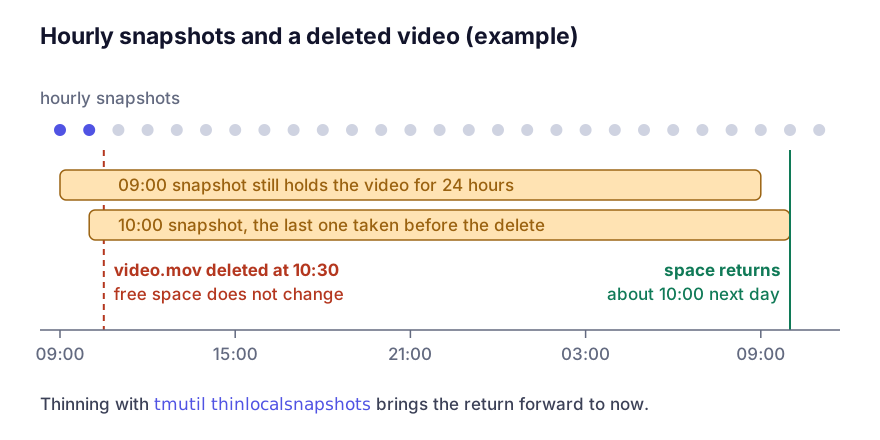
So you delete a lot, the number doesn’t move, and you delete more. The space turns up later as the snapshots expire, by which point you’ve removed far more than you meant to. Knowing this beforehand is worth more than any clean-up tool.
When you’re clearing space, thin the snapshots first and then delete files. The other way round, you’re working blind.
No tool can tell you how much a single snapshot holds. Snapshots share blocks with the live file system and with each other, so a snapshot’s size only means “how much deleting this one would return”. The practical measure is the gap between what df calls free and what the Finder calls available:
df -H /System/Volumes/DataThinning them
tmutil thinlocalsnapshots / 21474836480 4The arguments are the volume, the number of bytes to try to reclaim, and an urgency level from 1 to 4. Level 4 is the most aggressive and deletes snapshots to reach the target. The command prints which ones it removed. It only touches the internal volume; the backups on your external drive aren’t affected, so you don’t lose any Time Machine history.
To remove one specific snapshot:
tmutil deletelocalsnapshots 2026-10-07-091500To stop new ones being made while you work, pause automatic backups, and remember to turn them back on:
sudo tmutil disable      # pauses automatic backups and snapshots
sudo tmutil enable
The one to keep
If Time Machine is your only backup, the newest local snapshot is the local record of everything that changed since the last backup reached the external drive. Delete it while the drive is disconnected and those changes exist in exactly one place, the live file system. That’s fine until the day it isn’t.
So connect the backup drive, let a backup finish, and thin afterwards. If the backup drive is itself full, that’s a separate problem: when the Time Machine disk fills up covers thinning the backup rather than the snapshots.
Snapshots Time Machine didn’t make
tmutil only lists Time Machine’s own. Installers, cloning tools such as Carbon Copy Cloner, and macOS itself during an upgrade can take others:
diskutil apfs listSnapshots /System/Volumes/DataAnything in that list but not in tmutil listlocalsnapshots belongs to something else, and deleting another tool’s snapshot from under it tends to break that tool’s next run. What APFS snapshots are, and the difference between the system and data ones goes through reading that output.
Questions
Can I turn local snapshots off for good?
Not on their own. They’re part of Time Machine, so the only way to stop them is to turn Time Machine off, which leaves you with no backup. That’s a poor trade for 30 GB.
Are they copied to the external drive?
The changes they record are, when a backup runs. The local snapshots themselves are separate objects that stay on the internal disk.
Why do I have snapshots when Time Machine has never been set up?
macOS also takes them before system updates and during some migrations. Those are usually one-offs and expire on their own.
Keep reading
- Purgeable space on a Mac, and how to force it backPurgeable is space macOS believes it can reclaim but has not. What goes into it, why the Finder counts it as available when nothing else does, and the reliable ways to make macOS actually release it.
- “Your startup disk is almost full”: the first ten minutesThe macOS warning appears at about 5 GB free, which is late. Here is the order to work in, the four folders that are usually the whole answer, and what to do if the disk is already too full to delete anything.