 Bytesweep
 Windows Update leftovers
Update packages downloaded before installing, which are never used again once installed. SoftwareDistribution\Download.
It finds what is filling your drive, from Windows Update leftovers to game caches and old upgrades, and clears it with a 7-day undo. It also manages startup apps, updates your software through winget and the Microsoft Store, cleans privacy traces and recovers deleted files. Native .NET, no account, no telemetry.
Coming soon. Cleaning needs a licence. Windows 10 and 11, 64-bit. Installs without administrator rights.
Updated
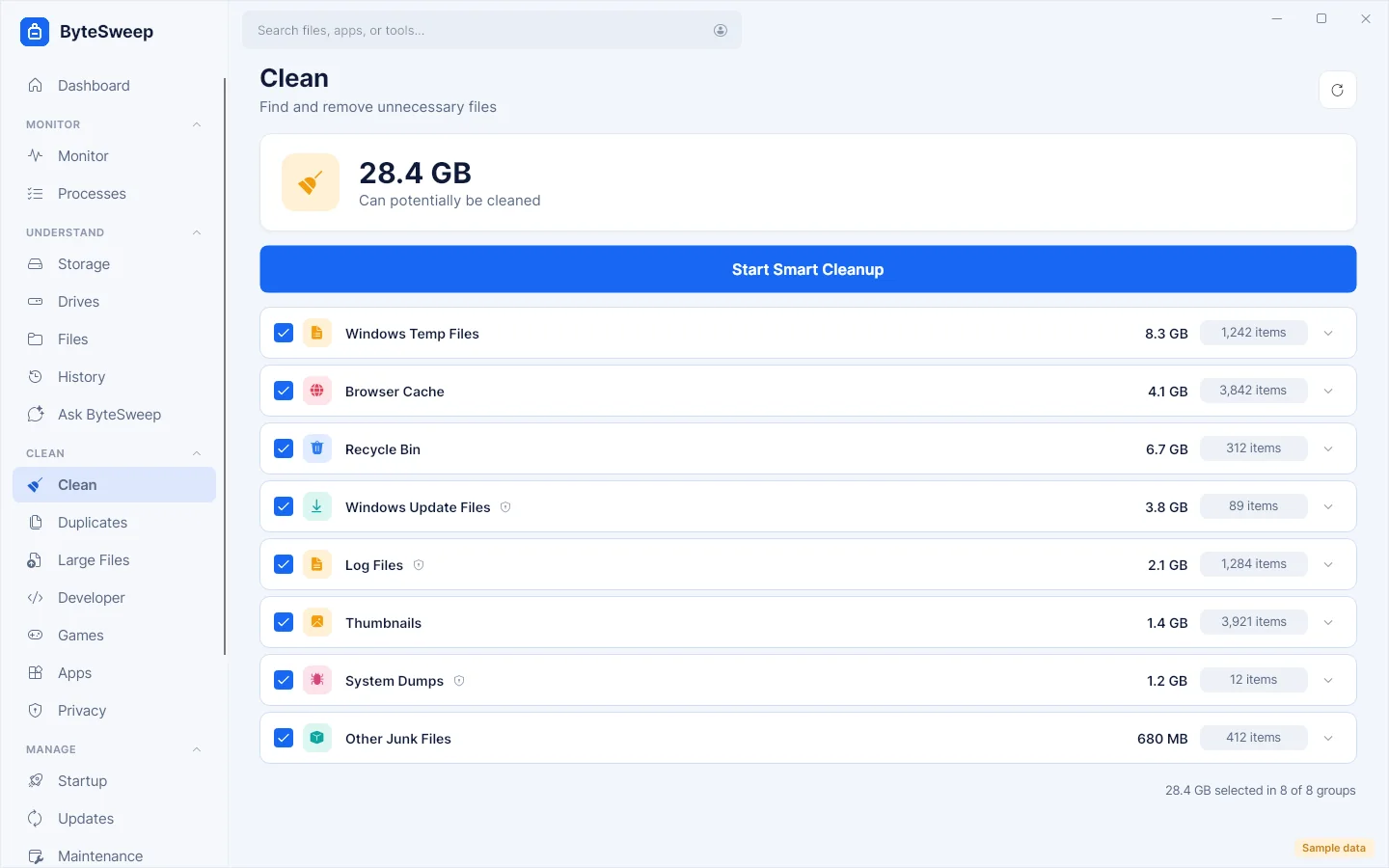
Bytesweep for Windows is a disk cleaner, storage analyzer and system monitor for Windows 10 and 11, built natively in C# and .NET 8. Every item it offers to remove comes with four answers: what it is, whether it is safe, what happens if you remove it, and whether it can be undone. Cleanups go to a quarantine you can restore for seven days; duplicates and hand-picked files go to the Recycle Bin.
Windows, System32, boot files, the page file and recovery partitions are never touched. Your Documents, Desktop, Pictures and OneDrive folders are never cleaned by a rule, only by files you pick yourself.
| Windows | Windows 10 or 11, 64-bit |
|---|---|
| Install | Per user, no administrator rights |
| Admin rights | Asked only by the tools that need them |
| Price | $5 once, per computer |
| Account | None |
The same four steps on a Windows PC: nothing leaves the drive until you press Clean, and nothing is gone for seven days.
The Settings app shows "Temporary files" and "Other". These are the folders underneath, each of which Bytesweep measures, explains and rates.
Update packages downloaded before installing, which are never used again once installed. SoftwareDistribution\Download.
Pieces of updates kept to share with other PCs. A cache; Windows trims it on its own schedule, slowly.
Superseded system components kept after updates. Cleaned the supported way, through DISM, never by deleting files.
The previous Windows installation kept after a feature upgrade, often 20 GB or more, plus $Windows.~BT.
MEMORY.DMP and minidumps written after a blue screen, useful to a developer and to nobody else.
User and system temp folders and the Explorer thumbnail cache, which rebuilds itself.
Chrome, Edge, Firefox and Brave caches. History, cookies and autofill are listed separately and cleared only if you choose them; saved passwords and bookmarks are never touched.
Caches and leftover installers from Steam, Epic Games, the EA app, GOG and Battle.net. Games and saves are left alone.
node_modules, bin and obj, Rust and Maven target, Gradle builds and Python virtual environments in projects you have not touched for months.
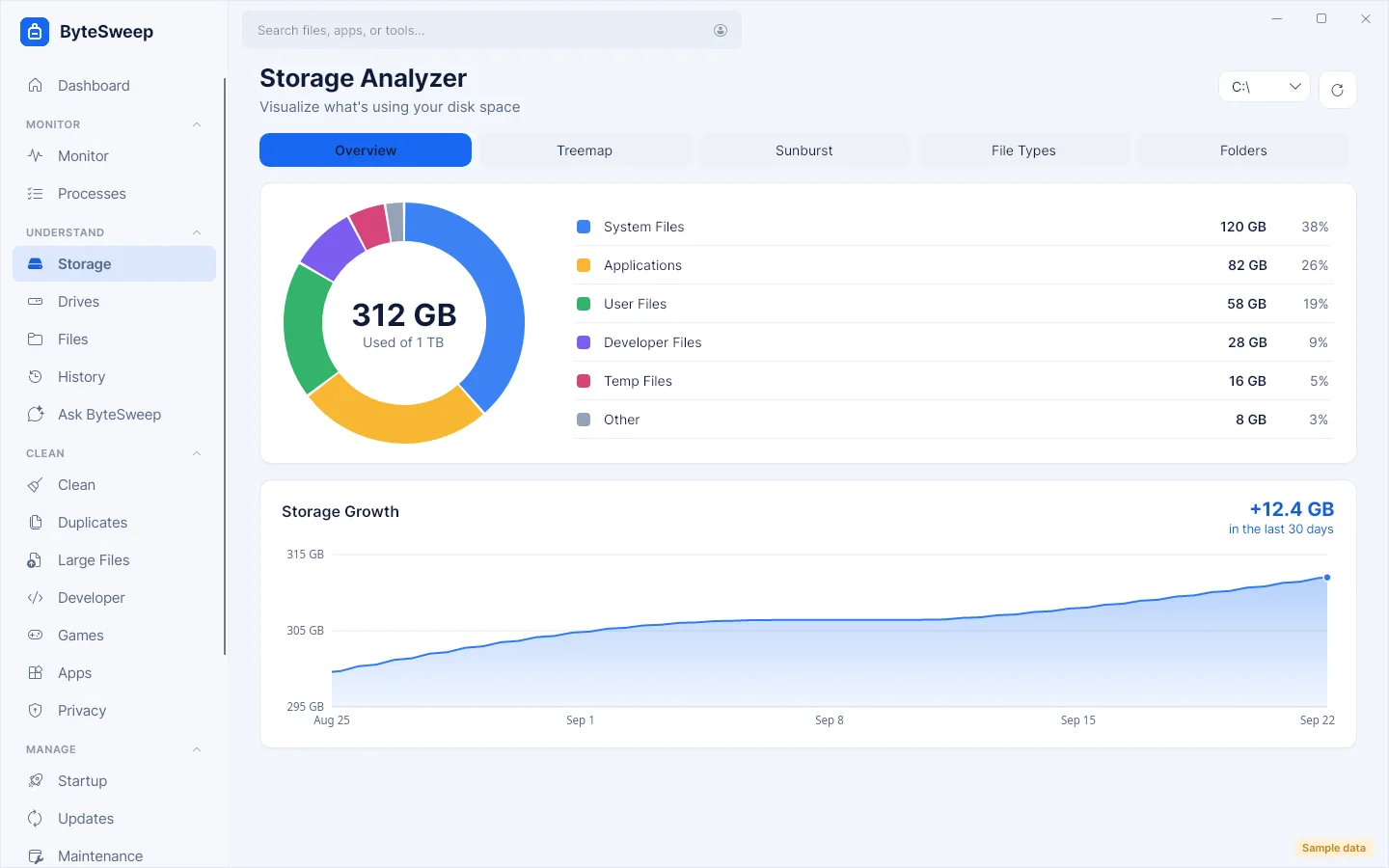
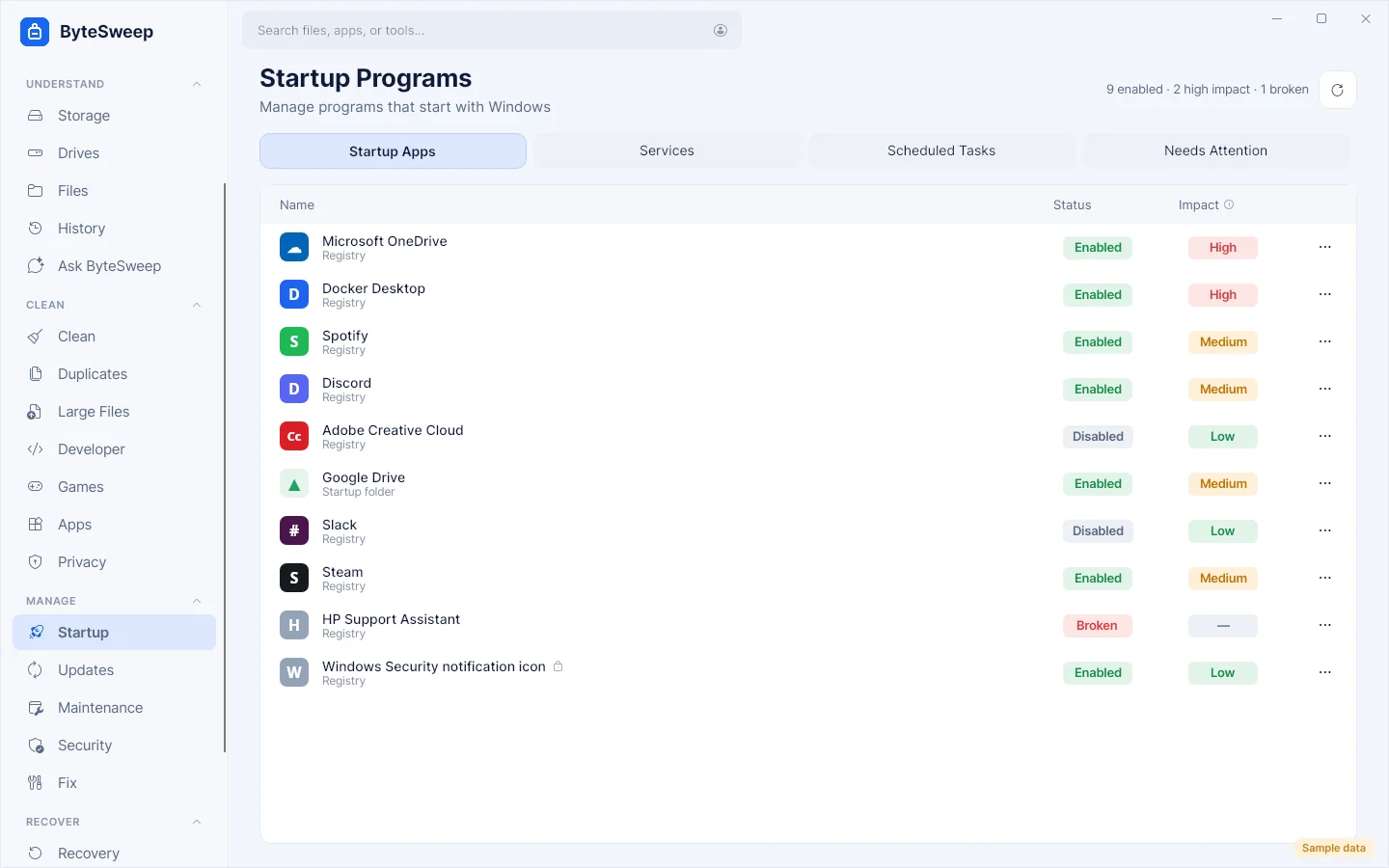
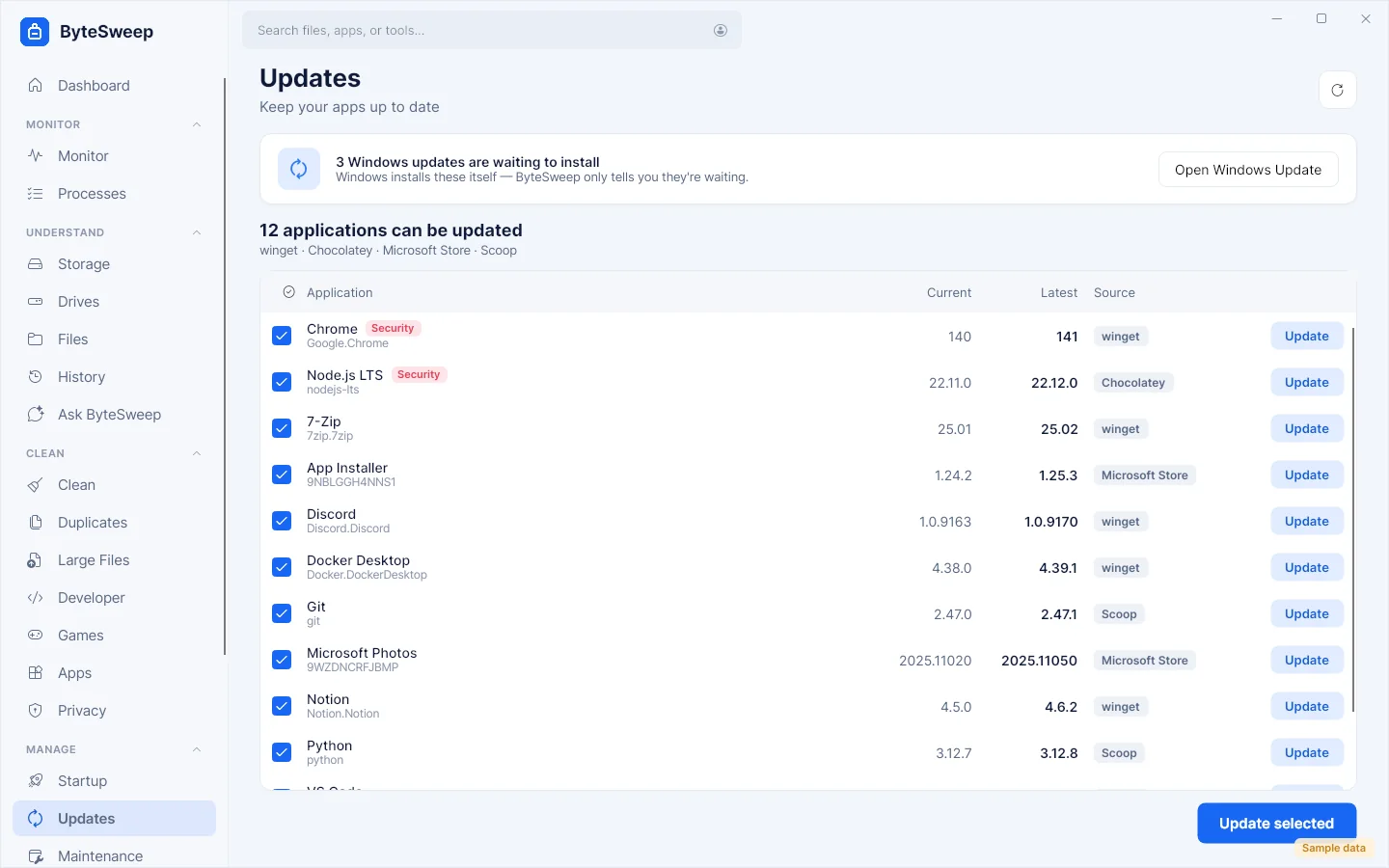
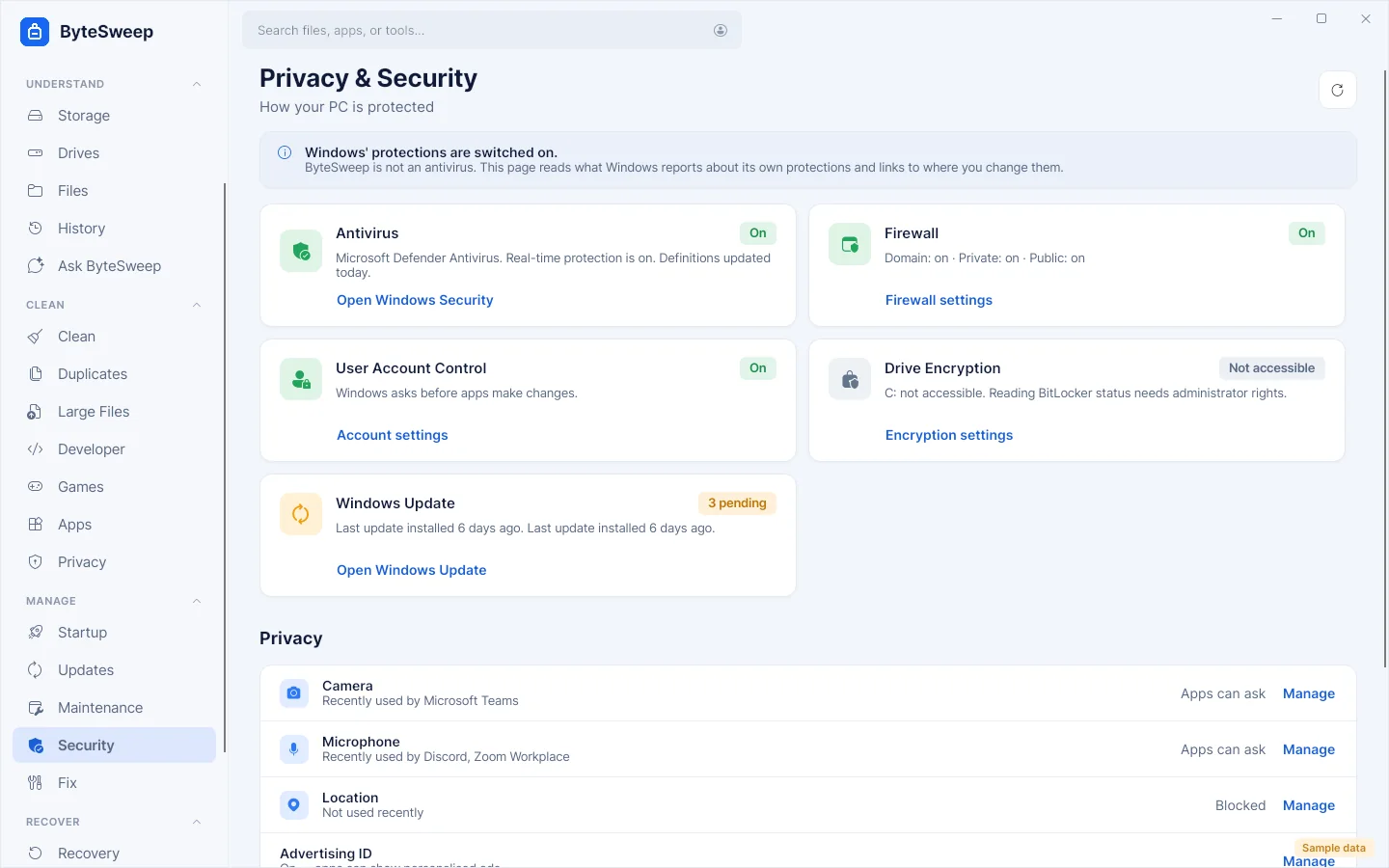
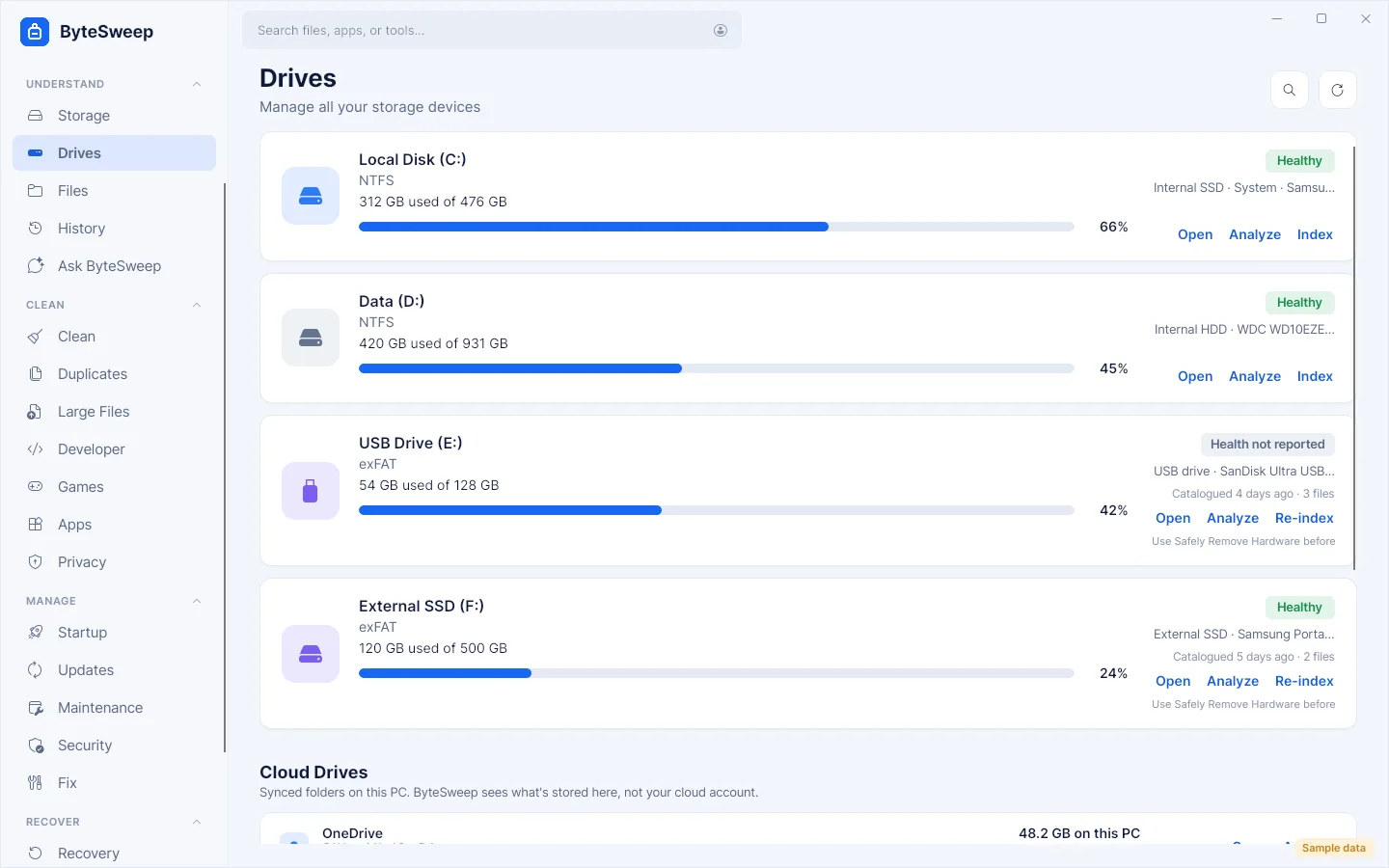
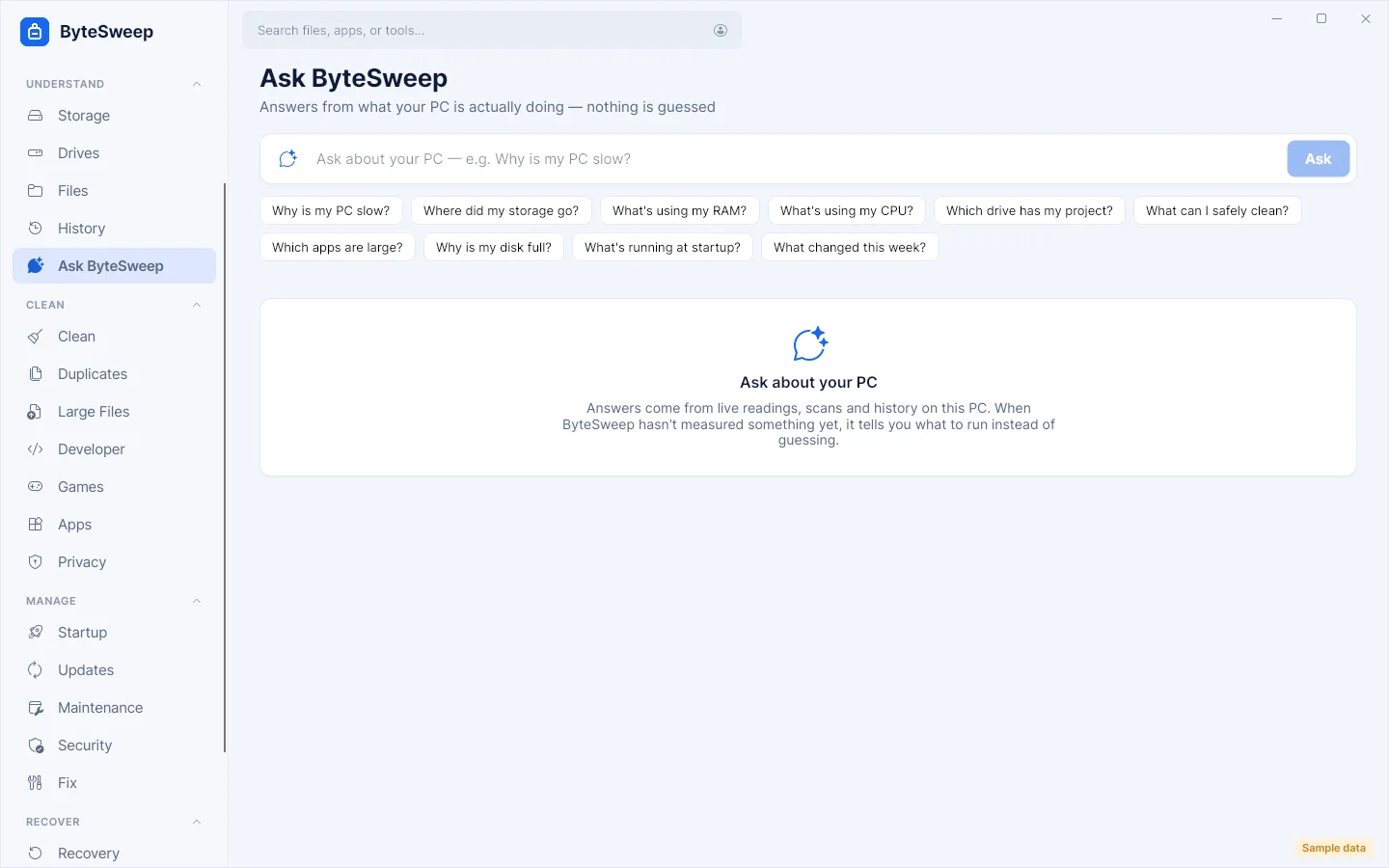
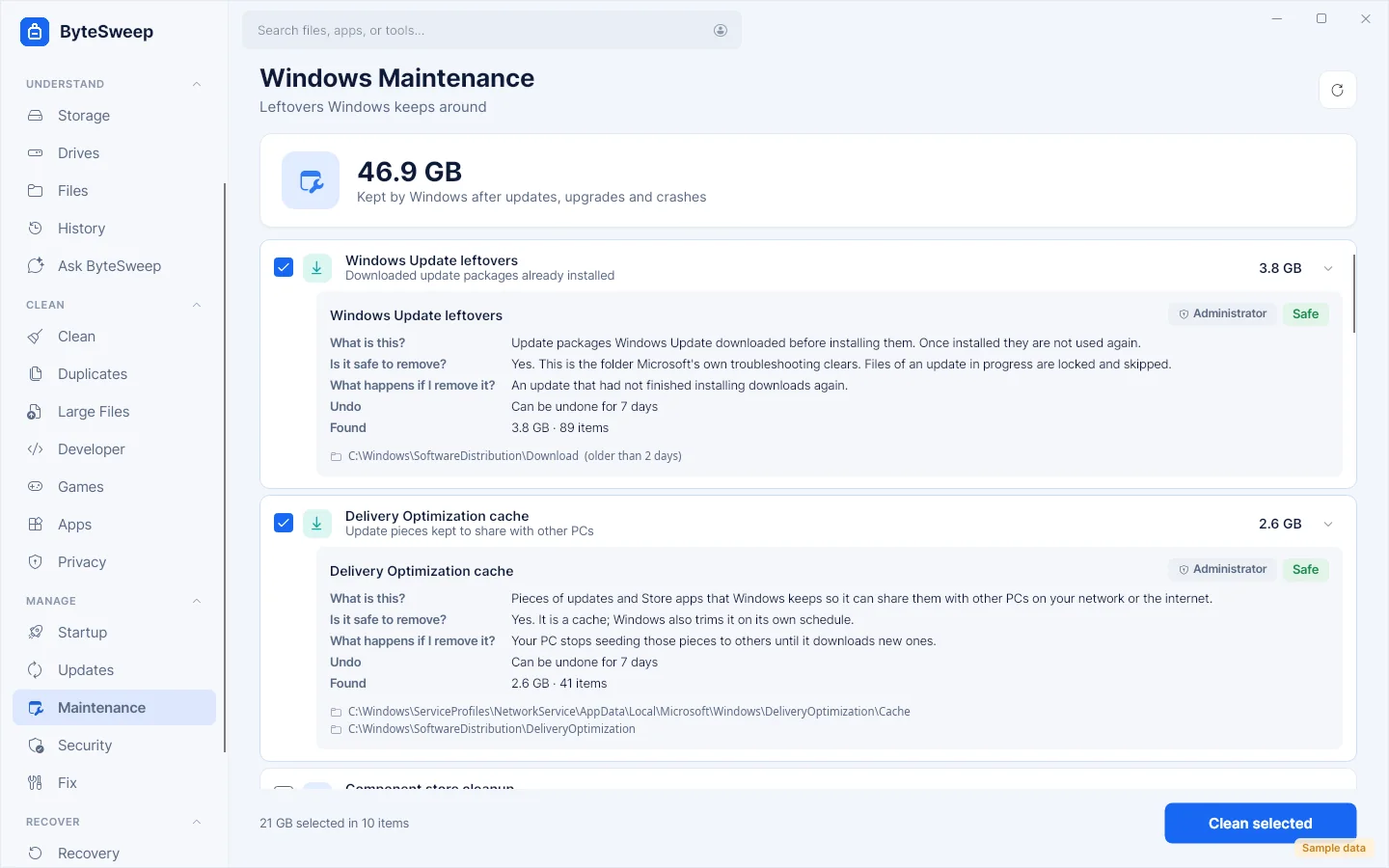
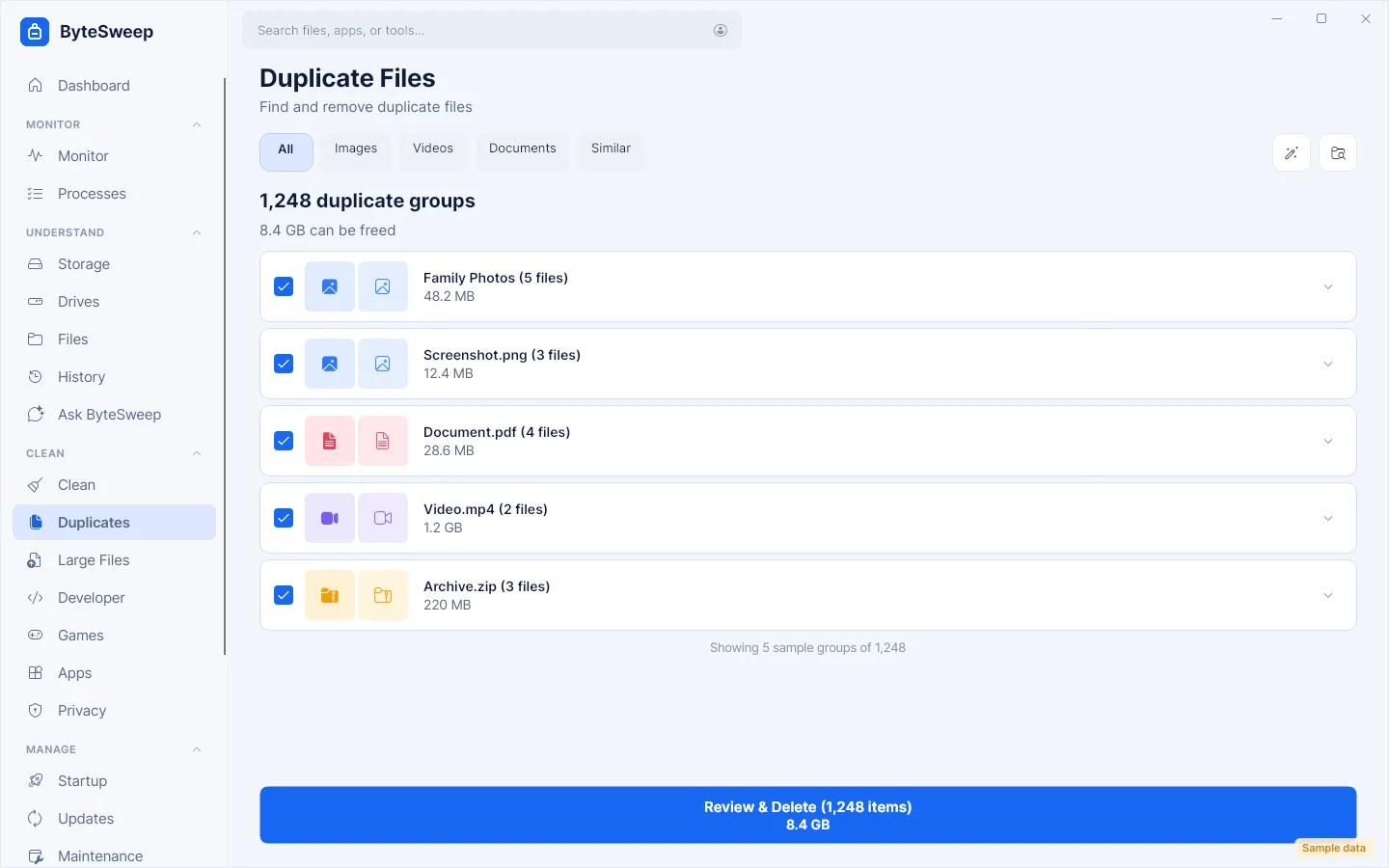
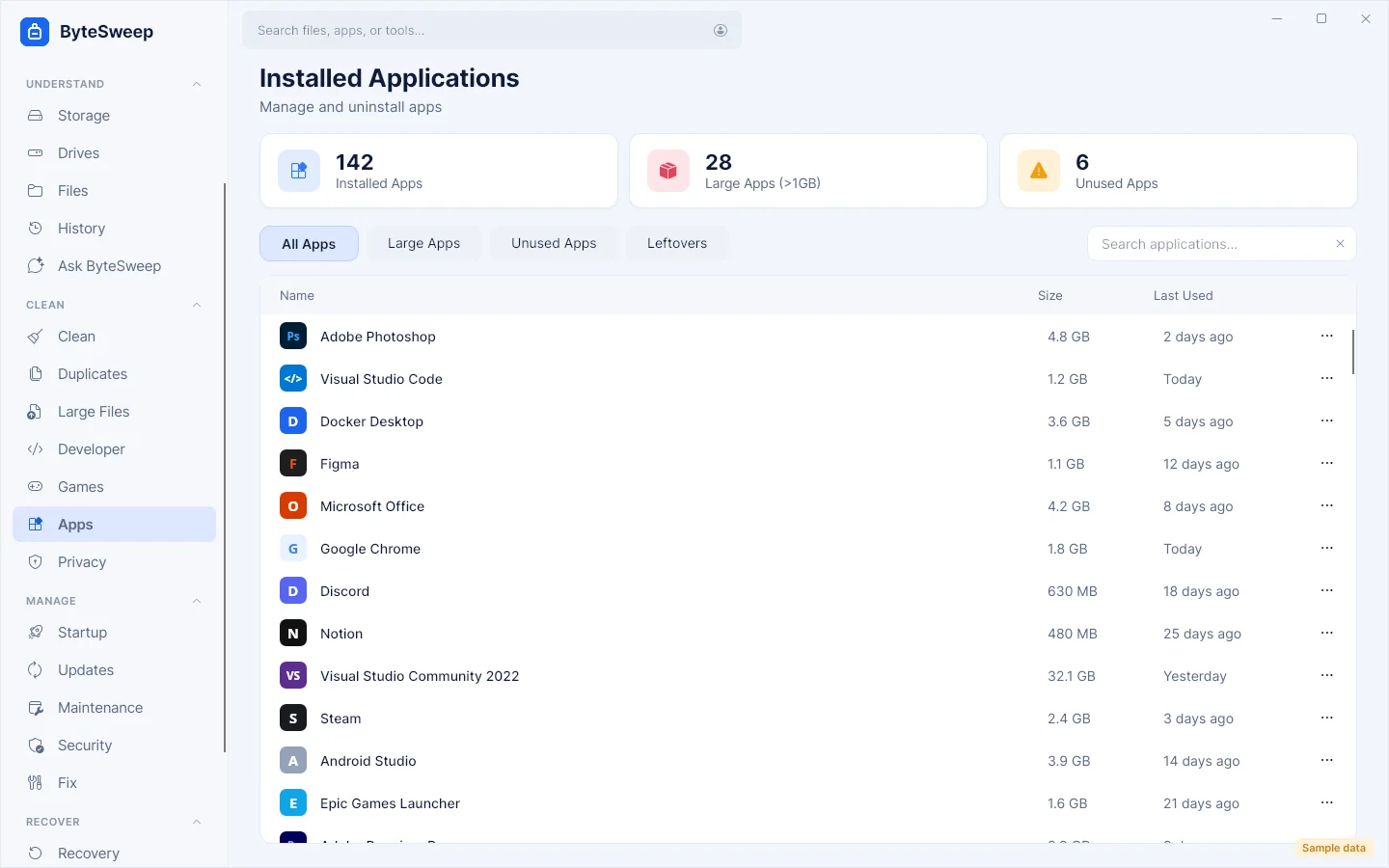
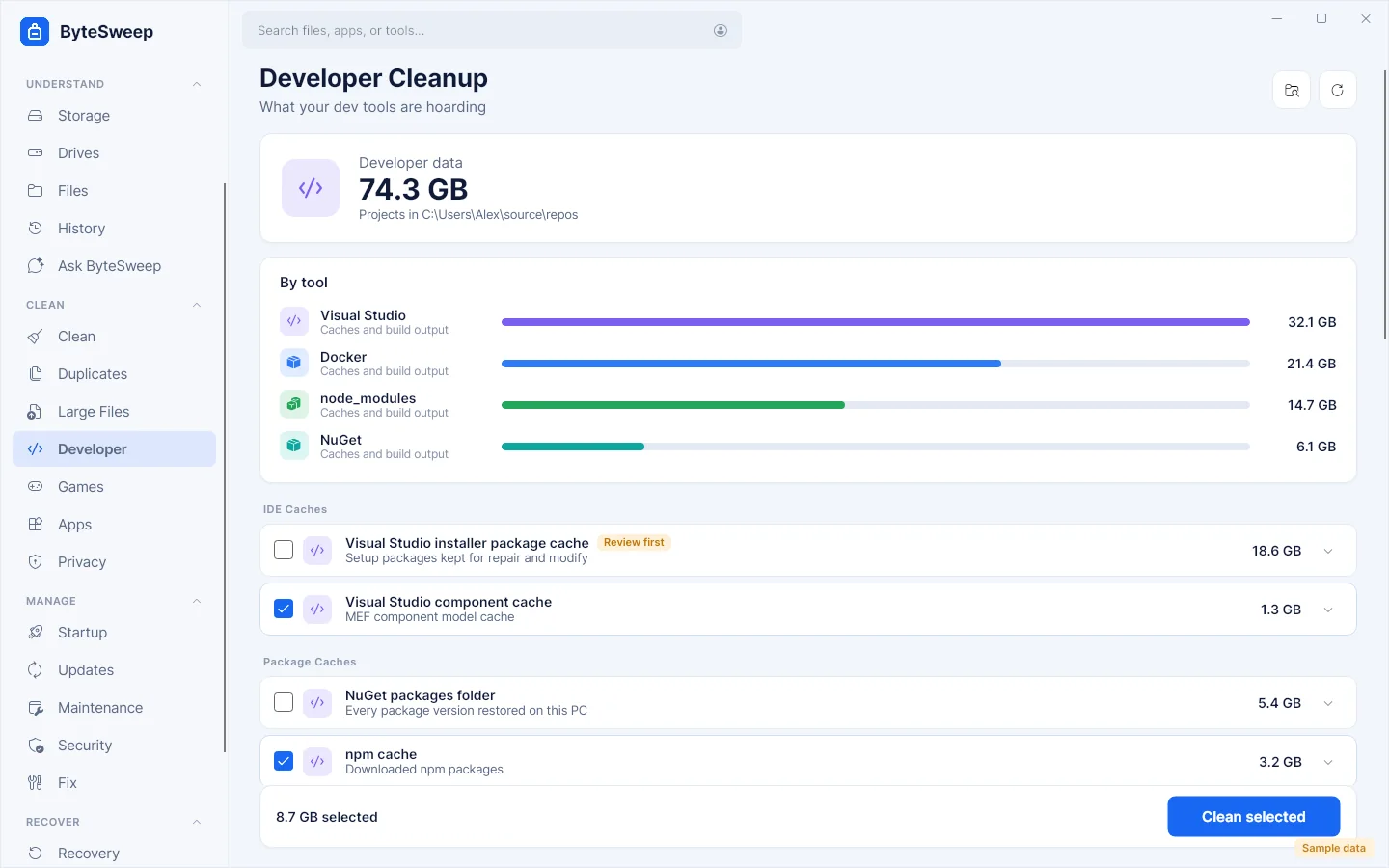
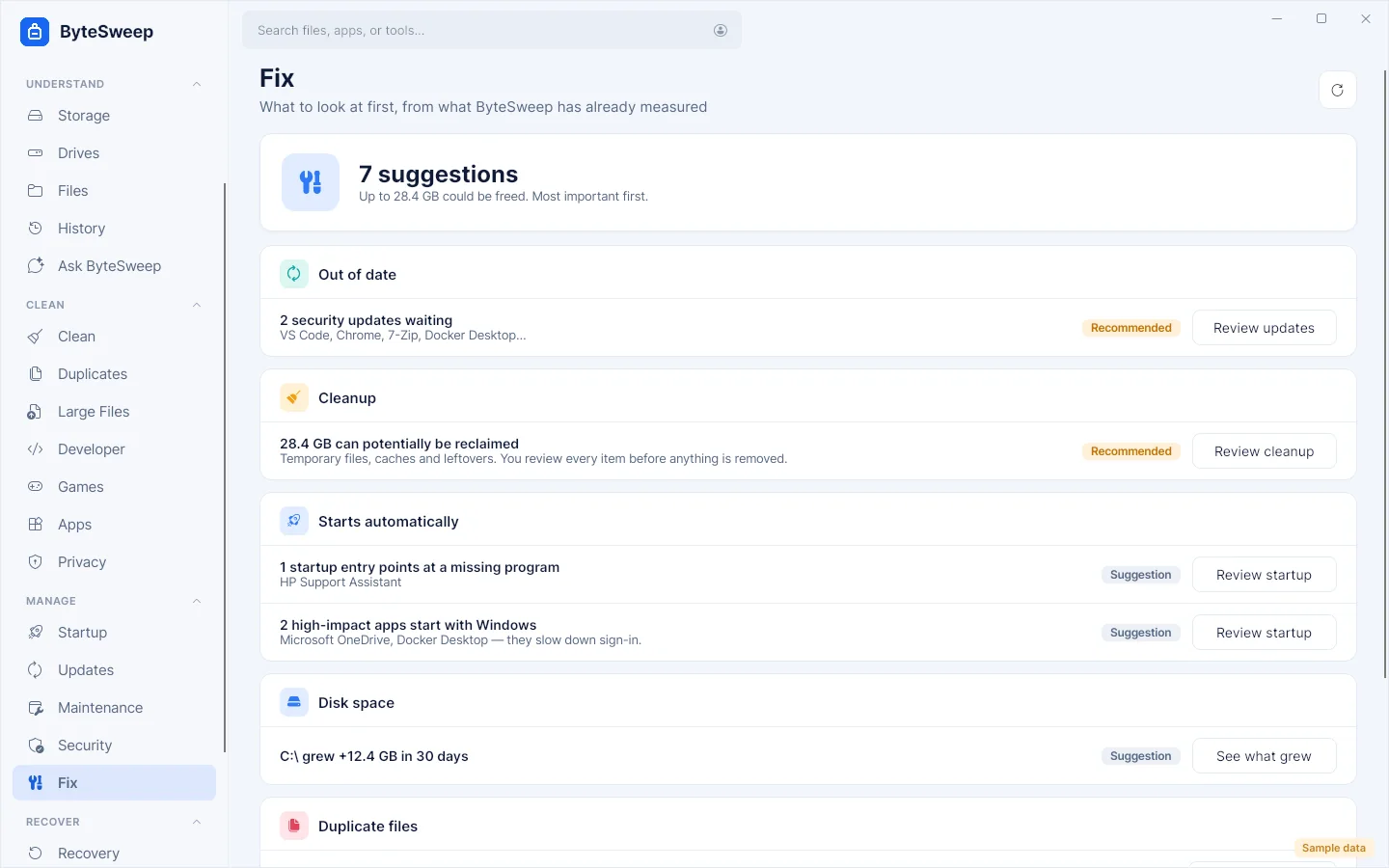
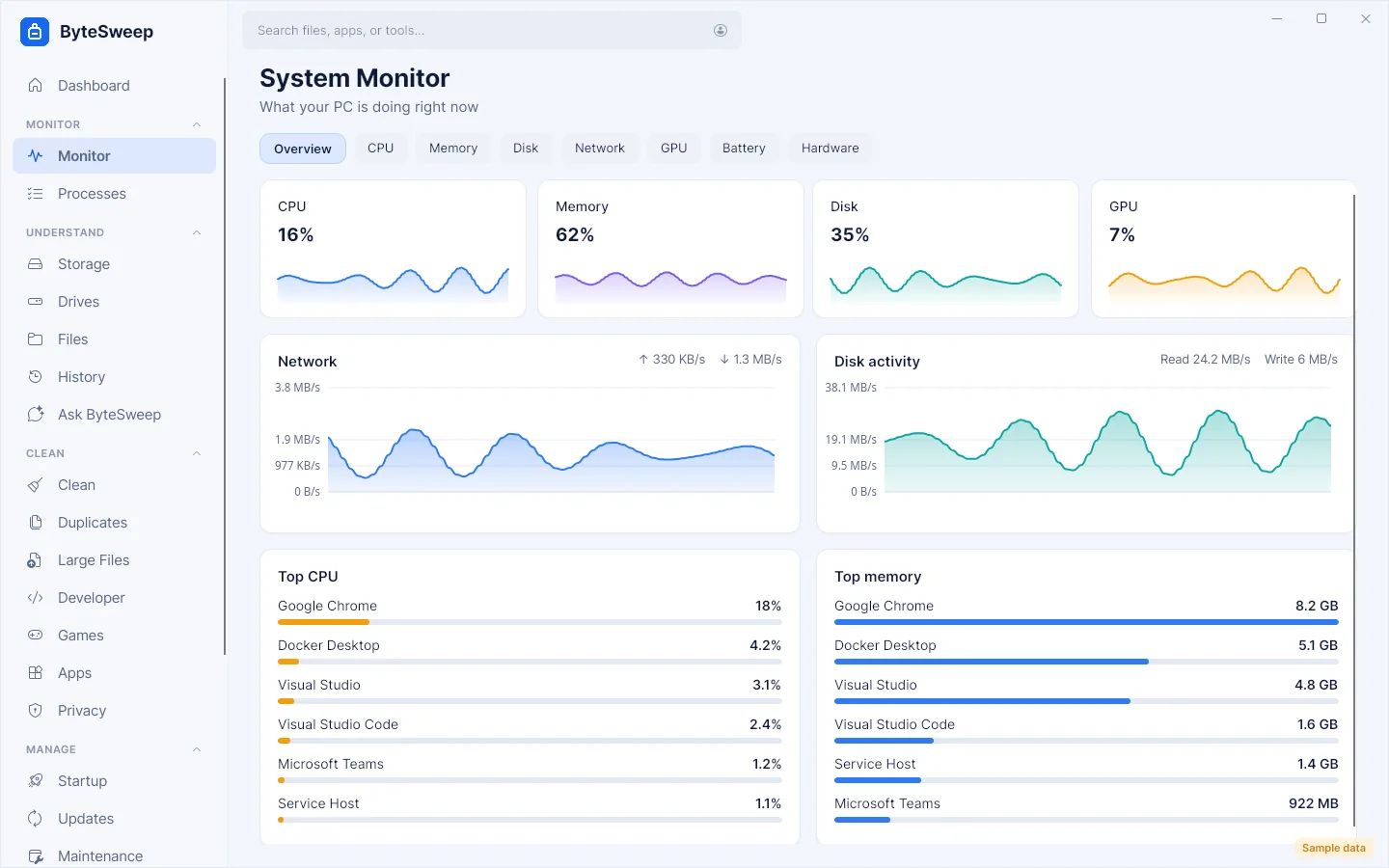
Bytesweep covers what CCleaner is used for, such as temp files, browser caches, startup apps and app updates, and adds a storage analyzer, duplicate finder, file recovery and a 7-day undo on every cleanup. Its registry tool is deliberately narrow, and it is a one-time $5 with no subscription and no bundled offers.
Yes, once the updates are installed. The files in SoftwareDistribution\Download are the installers Windows downloaded; Microsoft's own troubleshooter clears that folder. Files of an update still in progress are locked, and Bytesweep skips them.
Yes, if you do not plan to roll back to the previous version. It is removed automatically after about ten days; deleting it earlier frees the space now but ends the option to go back. Bytesweep marks it review first and explains that trade.
Only narrowly. It finds entries that point at files no longer on disk: uninstall entries of removed apps, broken App Paths and startup items pointing nowhere. Each key is exported to a .reg backup before it is removed, and shared DLLs, COM registrations and file associations are never touched. Registry cleaning does not make Windows faster, and Bytesweep says so.
Not to install or to run. A few tools ask for elevation when you use them: component store cleanup, clearing event logs, all-users startup entries and services, BitLocker status, and recovery from a raw drive.
No. There is no telemetry and no Bytesweep server. The Updates page talks only to the package sources it names (winget, Microsoft Store, Chocolatey, Scoop). Licence activation contacts Dodo Payments, our payment provider. The only other network use is the connectivity test and ping, which you start yourself.
Scan free and see every verdict. When you want to clean, one payment of $5 unlocks it on that computer.