 Bytesweep
 Bytesweep › Blog › Linux disk usage
The root file system is full — diagnose it in five commands
A full root file system on Linux is worse than a full disk on a desktop, because services fail before you notice. PostgreSQL refuses writes, journald stops recording the very events that would explain what happened, and a package upgrade halts halfway through. The diagnosis is quick if you run the commands in the right order, and the one that catches people out is the third.
By Faheen Ahmed · Published 26 September 2026 · Last updated 26 September 2026 · 4 min read · Part of Disk usage analyzer for Linux
On this page
One: the honest numbers
df -h
df -i
Two different failures produce the same “No space left on device” message. The first df shows blocks. The second shows inodes, and a file system can be at 12% of its blocks and 100% of its inodes if something has created millions of tiny files — a mail queue, a session directory, a misconfigured cache. If IUse% is 100, do not go looking for large files; go looking for large counts of files.
Two: the biggest directories, without crossing file systems
sudo du -xh --max-depth=1 / 2>/dev/null | sort -h | tail -15-x is essential. Without it, du descends into /proc, /sys, network mounts and any other file system mounted below /, and the answer is meaningless. Repeat it one level deeper on whichever directory is the largest:
sudo du -xh --max-depth=1 /var 2>/dev/null | sort -h | tail -15On most servers the answer is now visible: /var/log, /var/lib/docker, /var/cache, or a home directory.
Three: the deleted files nothing can see
This is the one that wastes afternoons. A process holding a file open keeps its blocks allocated even after the file is unlinked. du cannot see it, because there is no directory entry; df counts it, because the space is still allocated. The symptom is df and du disagreeing by many gigabytes.
sudo lsof +L1 | sort -k7 -n | tail -20+L1 lists open files with a link count below one, which is exactly the set of deleted-but-open files. The usual culprit is a log file that was removed by hand — or by a naive cleanup script — while the service writing to it kept running. The fix is to restart that service, not to delete anything further. To avoid recreating the problem, truncate rather than delete:
sudo truncate -s 0 /var/log/some-huge.logFour: the journal
systemd’s journal has a default cap that is a percentage of the file system, which on a large disk means gigabytes. It is almost always among the top three on a server that has been running for a year.
journalctl --disk-usage
sudo journalctl --vacuum-size=200M
Set a permanent bound rather than doing this repeatedly — bounding the systemd journal properly covers SystemMaxUse and the rotation settings.
Five: the package manager’s cache
Every distribution keeps downloaded packages after installing them, and every one of them will clear it on request.
sudo apt clean && sudo apt autoremove --purge        # Debian, Ubuntu
sudo dnf clean all && sudo dnf autoremove            # Fedora, RHEL
sudo paccache -rk1 && sudo pacman -Rns $(pacman -Qtdq)  # Arch
sudo zypper clean --all                              # openSUSE
The autoremove half is usually the larger win, because it takes old kernels with it, and each kernel plus its initramfs and modules is 200 to 400 MB. Distribution specifics are in apt caches and old kernels, paccache on Arch and dnf on Fedora.
After those five
If the space is still missing, work down this list. Each one is a common single cause.
| Suspect | Check | Safe to clear |
|---|---|---|
| Docker | docker system df | Yes, with care over volumes |
| Snap revisions | snap list --all | Yes, disabled revisions only |
| Flatpak runtimes | flatpak uninstall --unused | Yes |
| Core dumps | du -sh /var/lib/systemd/coredump /var/crash | Yes |
| Old kernels | dpkg -l 'linux-image-*' | Yes, keep the running one |
| Thumbnails and caches | du -sh ~/.cache | Yes |
| Btrfs snapshots | sudo btrfs subvolume list / | Carefully — see why df lies on Btrfs |
Keep a few hundred megabytes free at all times on /. Below that, apt cannot unpack, journald cannot rotate, and the tools you need to fix the problem are the ones that stop working first.
Questions
Why does df show 100% when du says the disk is half empty?
Either deleted-but-open files, which lsof +L1 finds, or reserved blocks. ext4 reserves five per cent of the file system for root by default, which on a 2 TB disk is 100 GB you cannot use as a normal user.
Can I reduce the reserved blocks?
Yes, on a data volume: sudo tune2fs -m 1 /dev/sdXN drops it to one per cent. Leave it at the default on the root file system, because that reserve is what lets root log in and fix things when the disk is full.
Is it safe to delete /tmp?
Delete files in it, not the directory itself, and preferably by rebooting rather than by hand. See what actually lives in /tmp, /var/crash and the core dump store.
What is using inodes if no file is large?
Usually a session or cache directory with millions of entries. sudo find / -xdev -printf '%h\n' | sort | uniq -c | sort -n | tail names the directories with the most children.
See all of this on your own disk
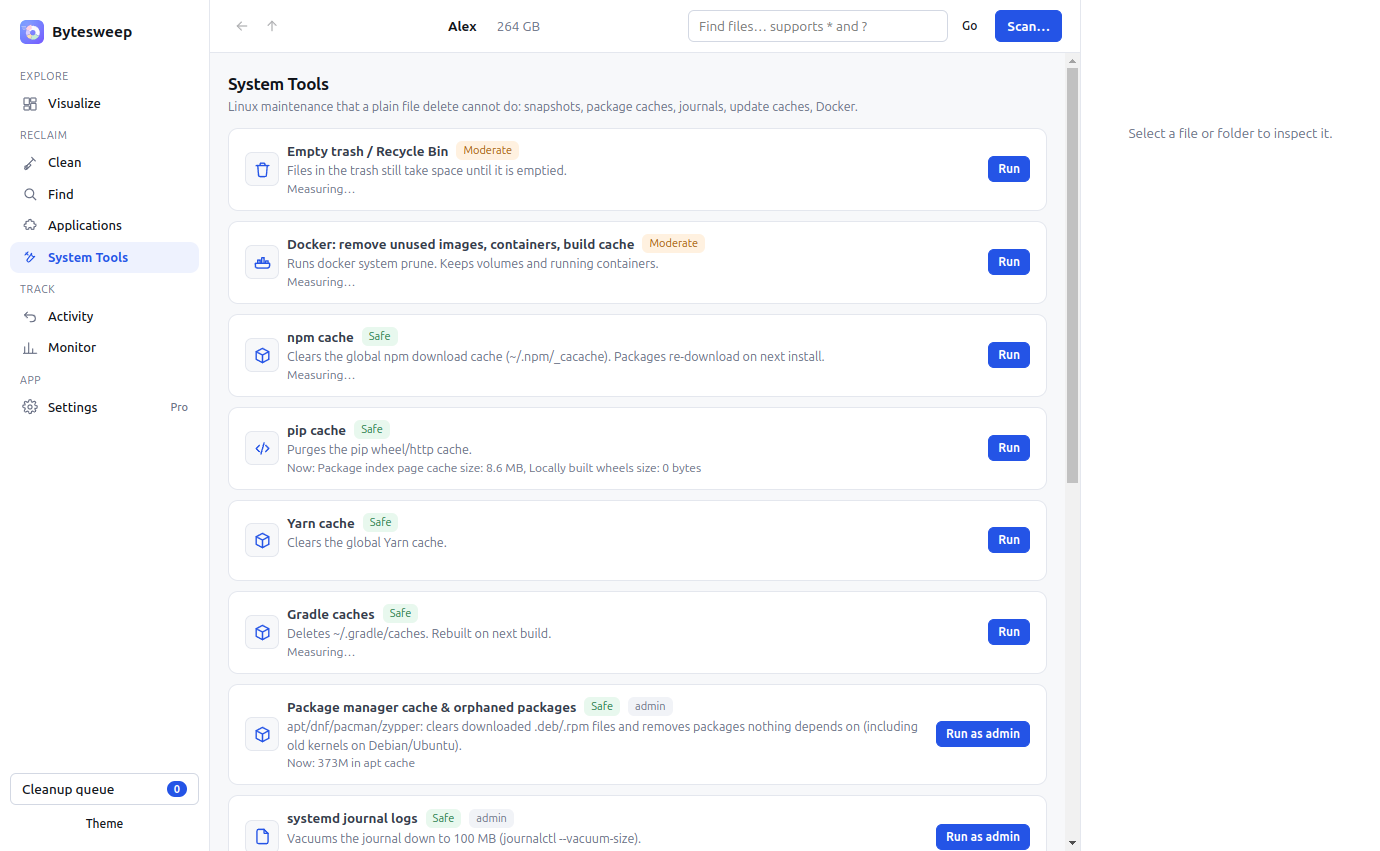
Every path on this page is one Bytesweep already knows by name. It measures the whole disk in about ten seconds, shows what is safe and what is not before you touch it, and moves everything it removes to a restore point you can undo for seven days.
Keep reading
Previous: Where Ollama stores models, and how to move them · All 6 articles · Disk usage analyzer for Linux