 ByteSweep
 Free up space on your Mac, PC and iPhone.
ByteSweep shows what is taking up room. You choose what goes. Nothing is removed until you say so.
Free to try on all three. No subscription.
See what is filling your disk. Free it in one click. Put it back for 7 days.

What these jobs cost elsewhere
Most computers end up with a separate paid app for each job. ByteSweep does them all, for one payment.
On a Mac
- Junk cleaner CleanMyMac~$40 a year
- Duplicate finder Gemini 2~$20 a year
- Disk space map DaisyDisk$9.99
- Menu bar system monitor iStat Menus$11.99
- Fan control TG Pro~$10–20
- Battery charge limit AlDente Pro~$25
- Per-app volume SoundSource$39
- Notch panel NotchNook$25
- App uninstaller App Cleaner & Uninstaller$34.95
- File recovery Disk Drill Pro$89
Together~$245, then ~$60 every year
ByteSweep for Mac$29.99 once
On a Windows PC
- Junk cleaner CCleaner Pro~$30 a year
- File recovery Recuva Pro~$25 a year
- Disk space map TreeSize Professional~$55
- Duplicate finder Duplicate Cleaner Pro~$40
- App uninstaller Revo Uninstaller Pro$24.95
App updates, a system monitor and per-app volume are usually free apps on Windows. They are in ByteSweep too.
Together~$120, then ~$55 every year
ByteSweep for Windows$29.99 once
US list prices, checked in October 2026. They vary by region and change often.
Names are other makers' products, listed so you can tell what each ByteSweep tool does. They are not affiliated with ByteSweep, and each has strengths of its own.
Three steps
-
Scan
ByteSweep adds up what you can safely free.
-
Review
Read the list. Keep whatever you like.
-
Clean
The space is yours again.
Scanning…Safe to clean
- Leftover system files3.1 GB
- Temporary app files4.8 GB
- Temporary browser files4.14 GB
- Old logs2.1 GB
- Temporary files1.2 GB
Try it here
Feel how it works on your computer.
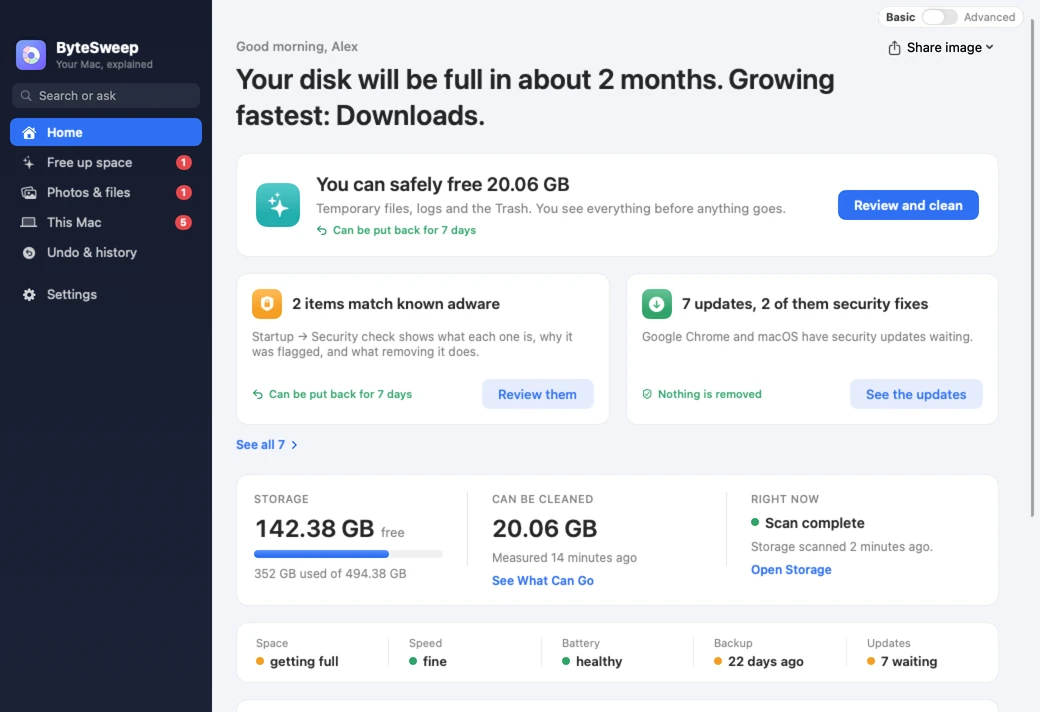
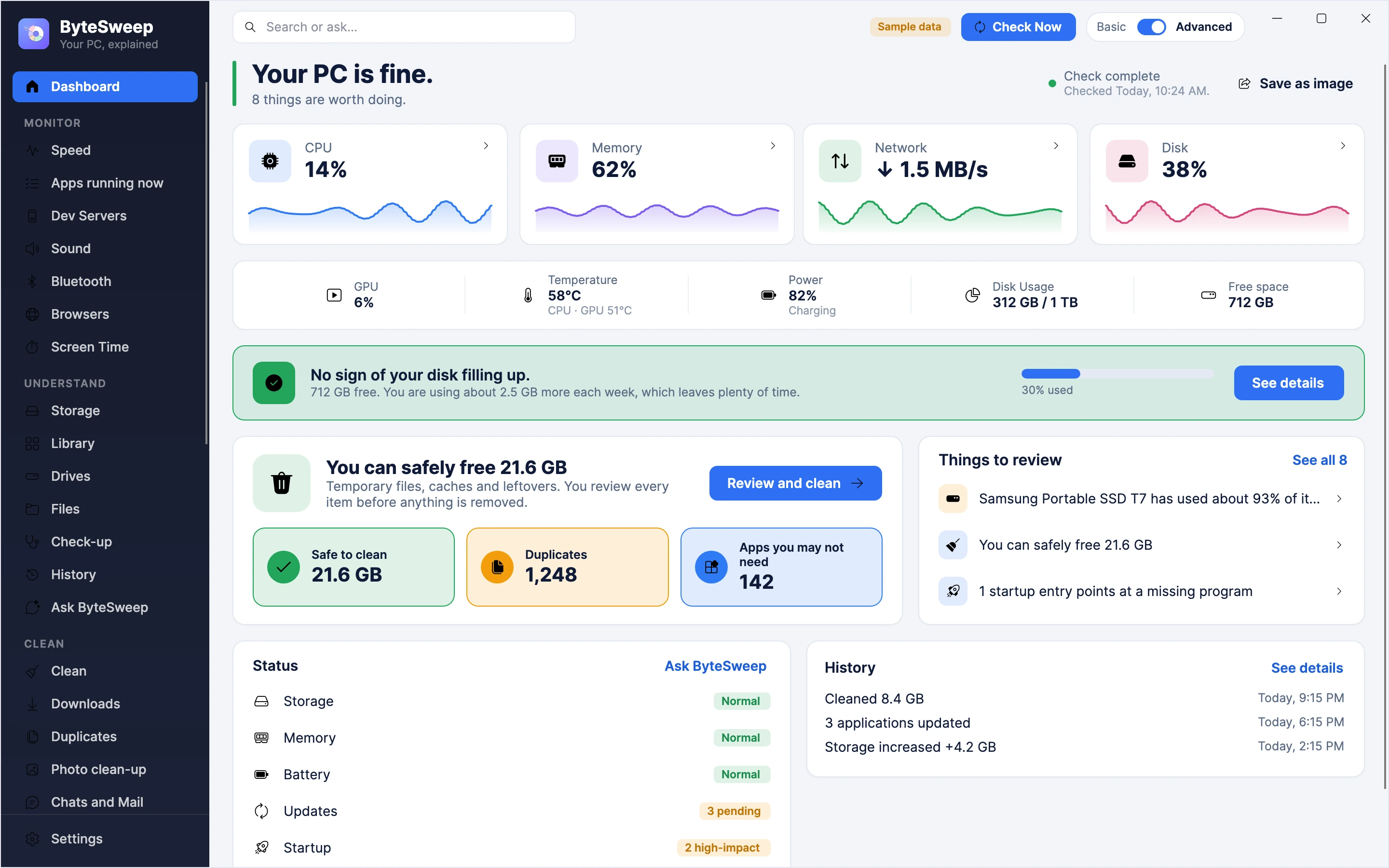
Choose Mac or Windows, then click around. Every page is the real app, shown with its sample data. Nothing on your computer is touched.
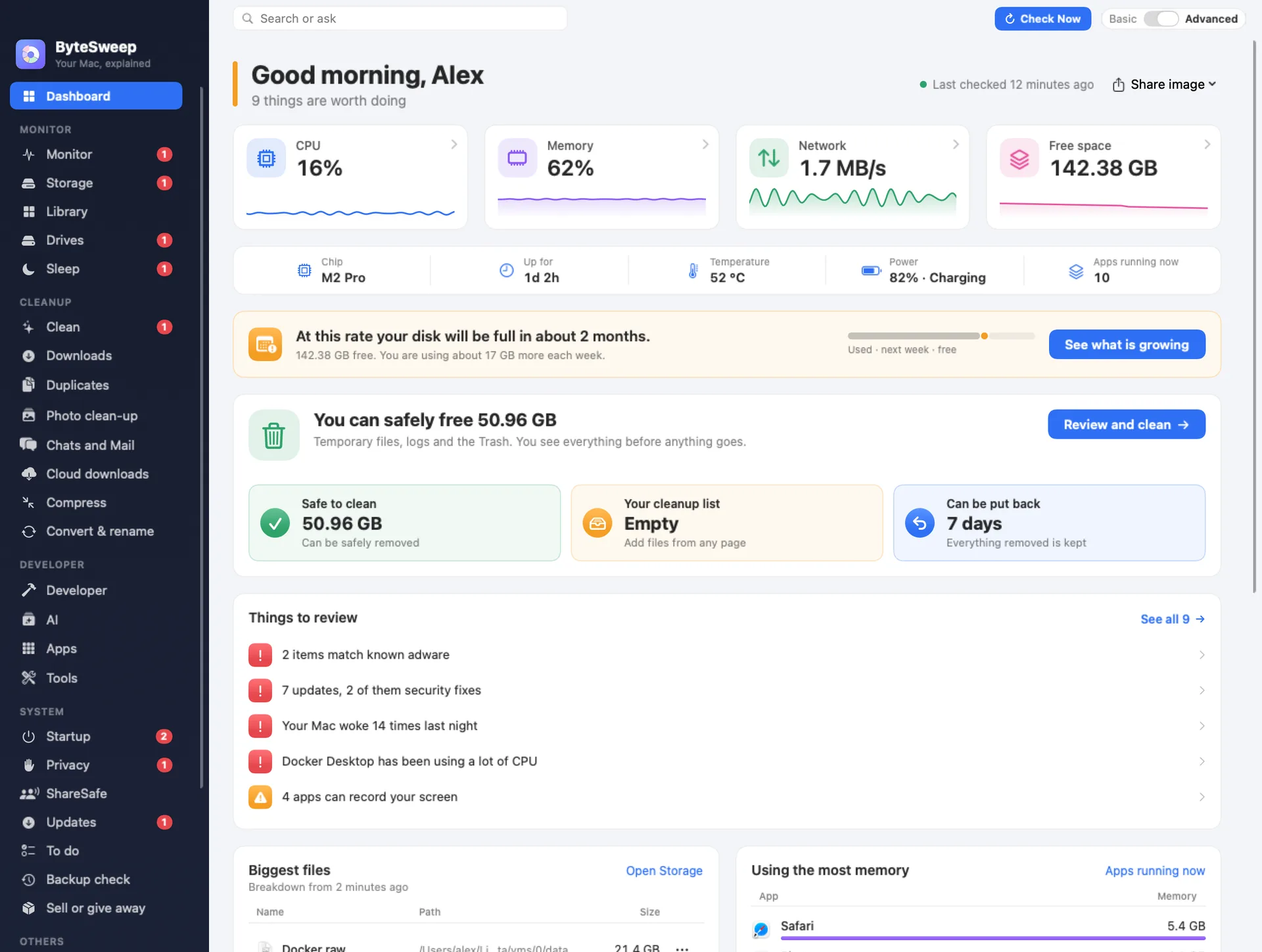
- Home
- Free up space
- Photos & files
- This Mac
- Undo & history
- For developers
- Settings
- Dashboard
- Monitor
- Storage
- Library
- Drives
- Sleep
- Clean
- Downloads
- Duplicates
- Photo clean-up
- Chats and Mail
- Cloud downloads
- Compress
- Convert & rename
- Developer
- AI
- Apps
- Tools
- Startup
- Privacy
- ShareSafe
- Updates
- Backup check
- Sell or give away
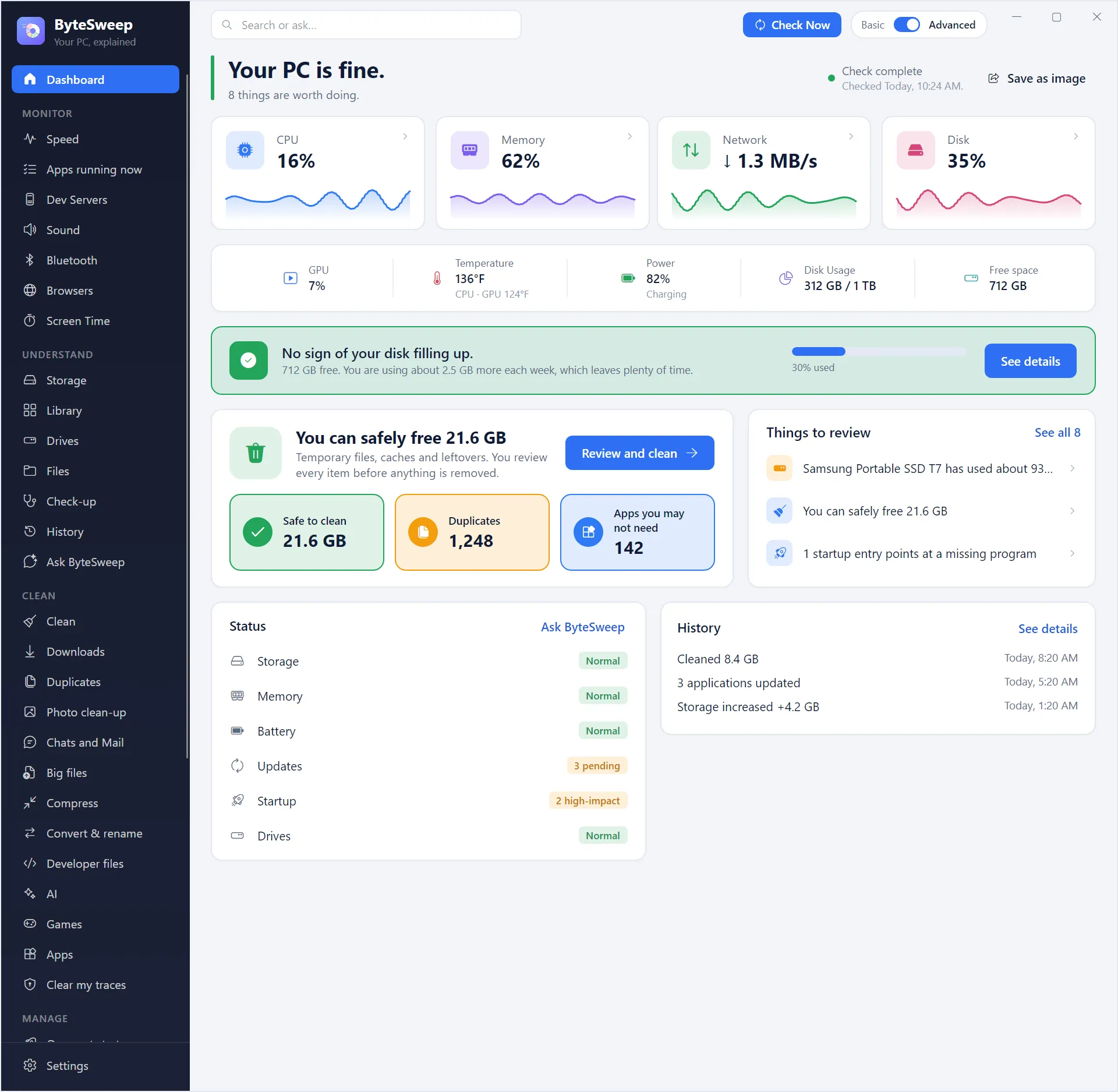
- Home
- Free up space
- Photos & files
- This PC
- Undo & history
- For developers
- Settings
- Dashboard
- Speed
- Apps running now
- Dev Servers
- Sound
- Bluetooth
- Browsers
- Screen Time
- Storage
- Library
- Drives
- Files
- Check-up
- History
- Ask ByteSweep
- Clean
- Downloads
- Duplicates
- Photo clean-up
- Chats and Mail
- Big files
- Compress
- Convert & rename
- Developer files
- AI
- Games
- Apps
- Clear my traces
- Opens at startup
- Updates
- Windows leftovers
- Security
- To-do list
- Backup check
- Sell or give away
- Recovery
- Recycle Bin
- Undo & history
- Tools
- Settings
Click any item in the sidebar, and scroll it for more. The Basic and Advanced switch at the top right works too.
On a Mac
A sidebar, a window with its three lights, and Apple’s own picture recognition. Checked by Apple.
On Windows
It knows Windows Update leftovers and the Recycle Bin, and tells you what can’t be put back.
You stay in charge
-
It looks first
A scan changes nothing.
-
You see the list
Every item, in plain words, with its size.
-
You can change your mind
On Mac and Windows, anything cleaned can be put back for 7 days.
New in ByteSweep 3.1 for Mac and Windows
Describe the file. ByteSweep finds it.
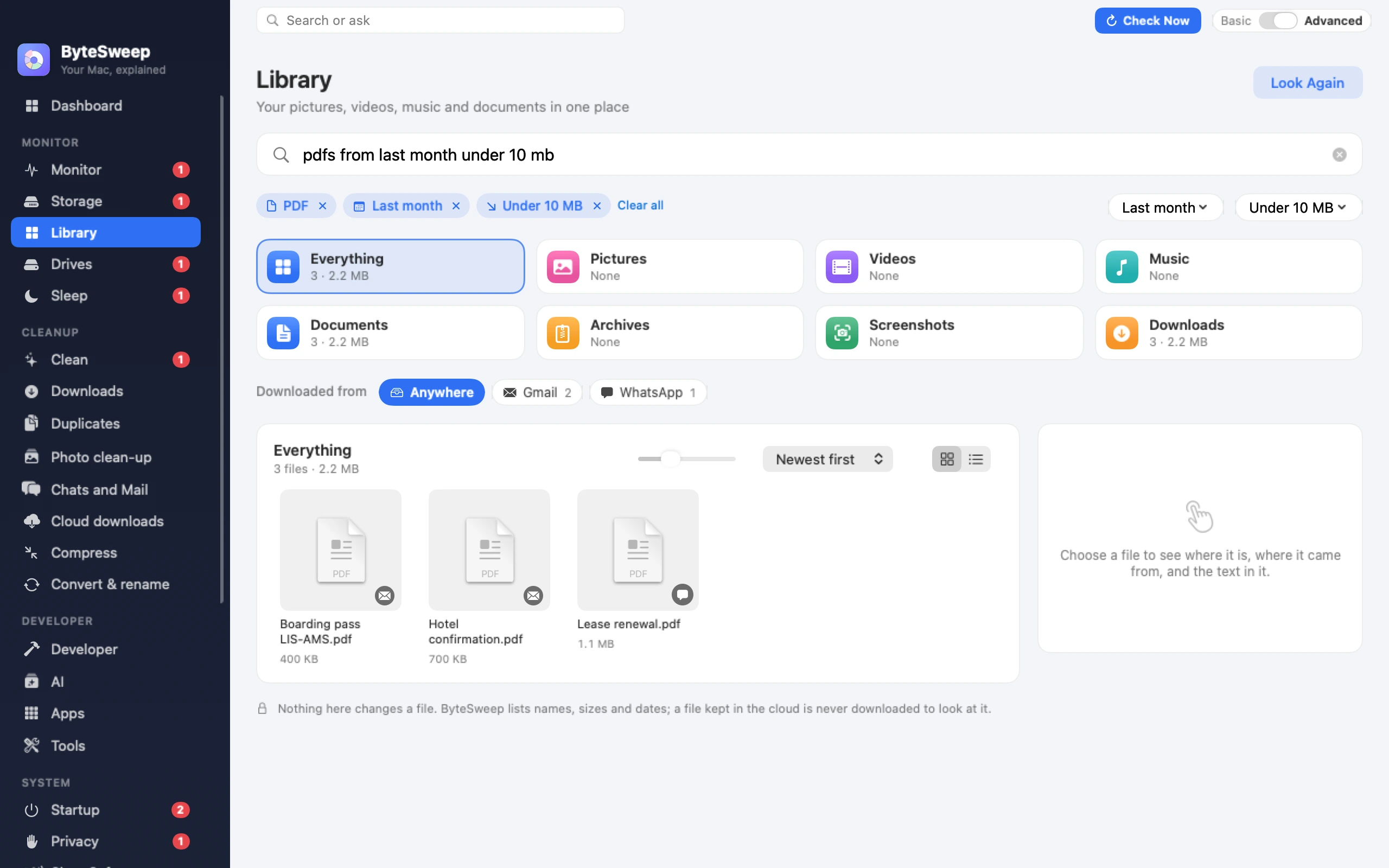
Type what you are looking for in plain words. The Library turns your sentence into filters you can see, and lists every file that matches.
- PDFFrom Gmail4 files · 7.6 MB
- VideosOver 1 GB3 files · 7.21 GB
- ScreenshotsThis month3 files · 8 MB
- DownloadsFrom Slack3 files · 337.6 MB
- Pictures4 files · 16.2 MB
-
Where it came from
Downloads are grouped by their source: Gmail, Slack, Google Drive, AirDrop and more.
-
The words in a picture
Copy the text out of a screenshot, a photo or a PDF. It is read on your own computer.
-
Nothing is changed
The Library only lists your files. To remove one, add it to your cleanup list and review it there.
The search box understands sentences in English. The time and size menus beside it do the same in every language.
New in ByteSweep 3.1 for Mac and Windows
Or describe the picture.
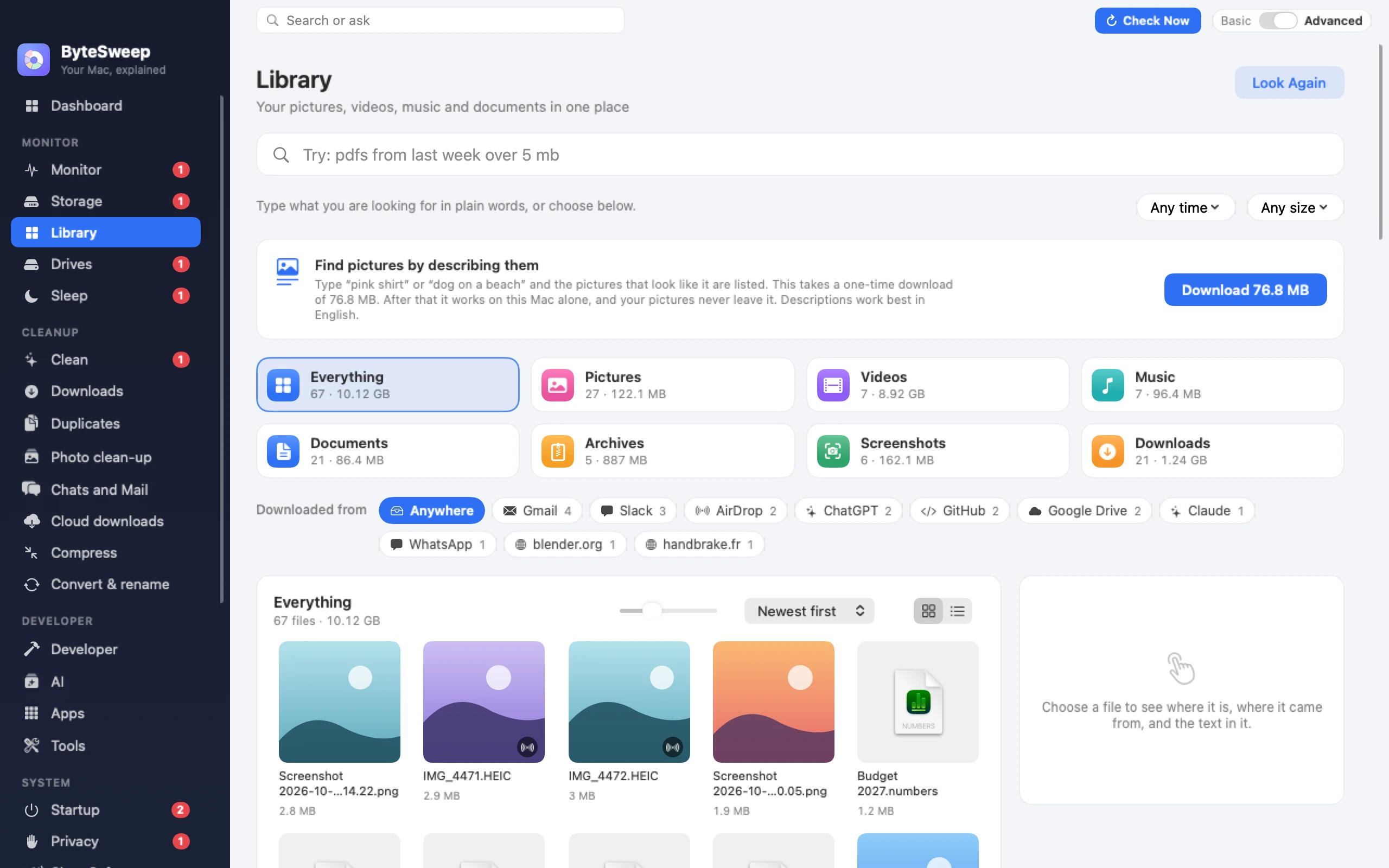
ByteSweep looks at your pictures on your own computer, so you can find one by what it shows, whatever it is called.
- A descriptionWith the download3 pictures
- A descriptionWith the download2 pictures
- What is in it3 pictures
- Colour4 pictures
-
By colour
Type “pink” or “blue” and the pictures that colour stands out in are listed. There is nothing to download for this.
-
By what is in it
“Beach”, “dog” or “receipt” lists the pictures that show one. On a Mac this works straight away, with Apple’s own picture recognition. On Windows it comes with the download.
-
By a whole description
“Pink shirt”. “Dog on a beach”. A one-time download of about 77 MB, started from the Library, understands sentences like these. It is the same on Mac and Windows.
Your pictures are looked at on your computer and are never uploaded. Descriptions are understood in English.
One name. Three apps.
Each one is made for the device it runs on.
-
ByteSweep for Mac
Clears what you no longer need, finds duplicates and shows what your Mac is doing.
macOS 14 or later. Apple silicon and Intel. Checked by Apple.
-
ByteSweep for Windows
The same careful cleaner for your PC. It knows Windows Update leftovers and the Recycle Bin too.
Windows 10 and 11. From the Microsoft Store.
-
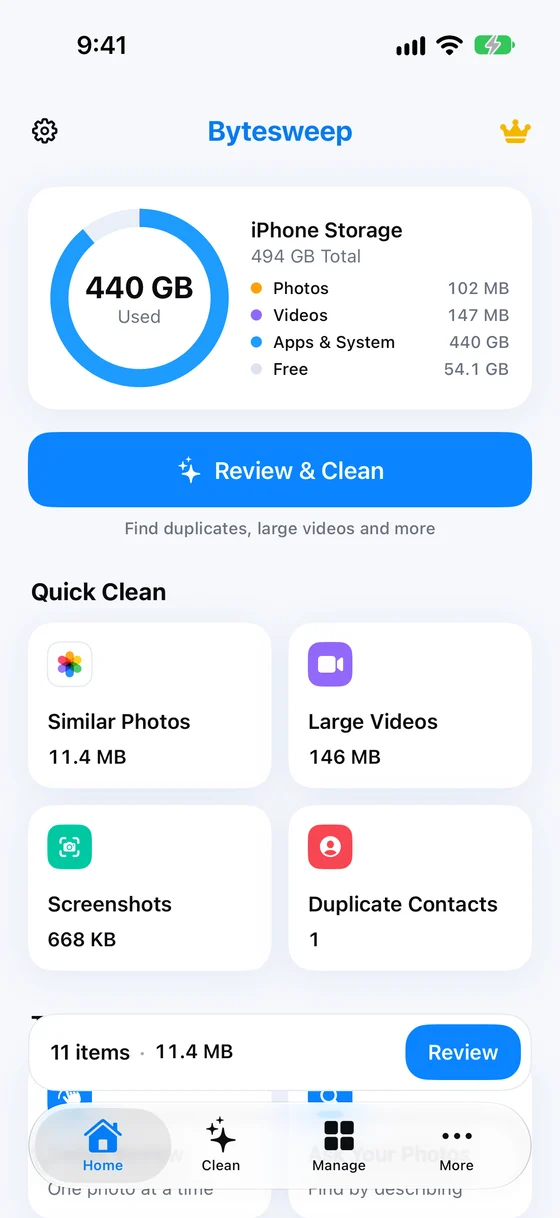
ByteSweep Storage Cleaner
Swipe through your photos. Left lets one go, right keeps it. Duplicates and big videos are found for you.
For iPhone. A separate app on the App Store.
More than a cleaner
Making room is where it starts. Pick a part, or keep scrolling.
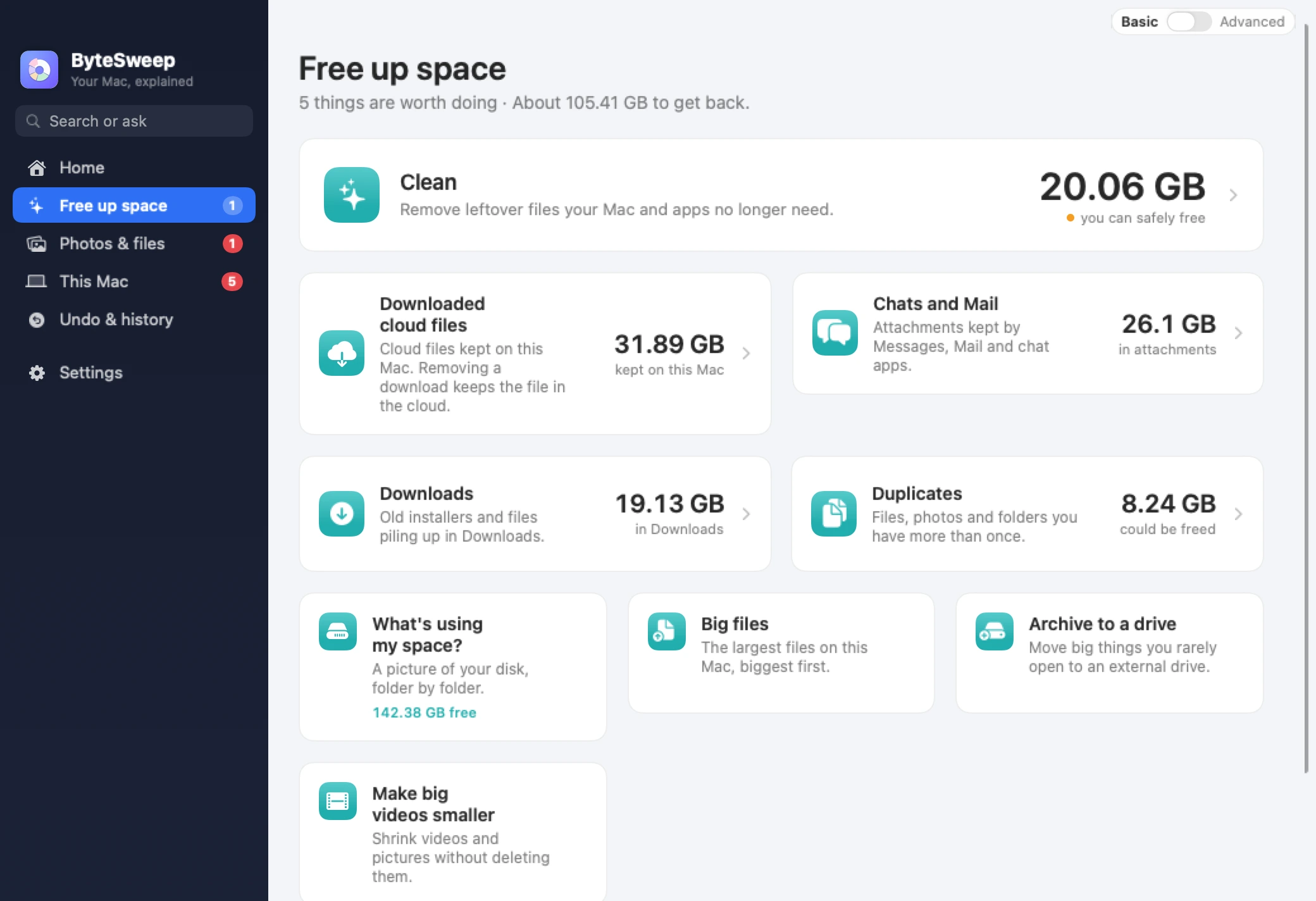
Space, found
ByteSweep finds what you no longer need. You decide what goes.
- Temporary files, old downloads and the Trash
- A map of what is using your disk
- Your biggest files, largest first
- A tidier Downloads folder
- Photos and videos saved by chat and mail apps
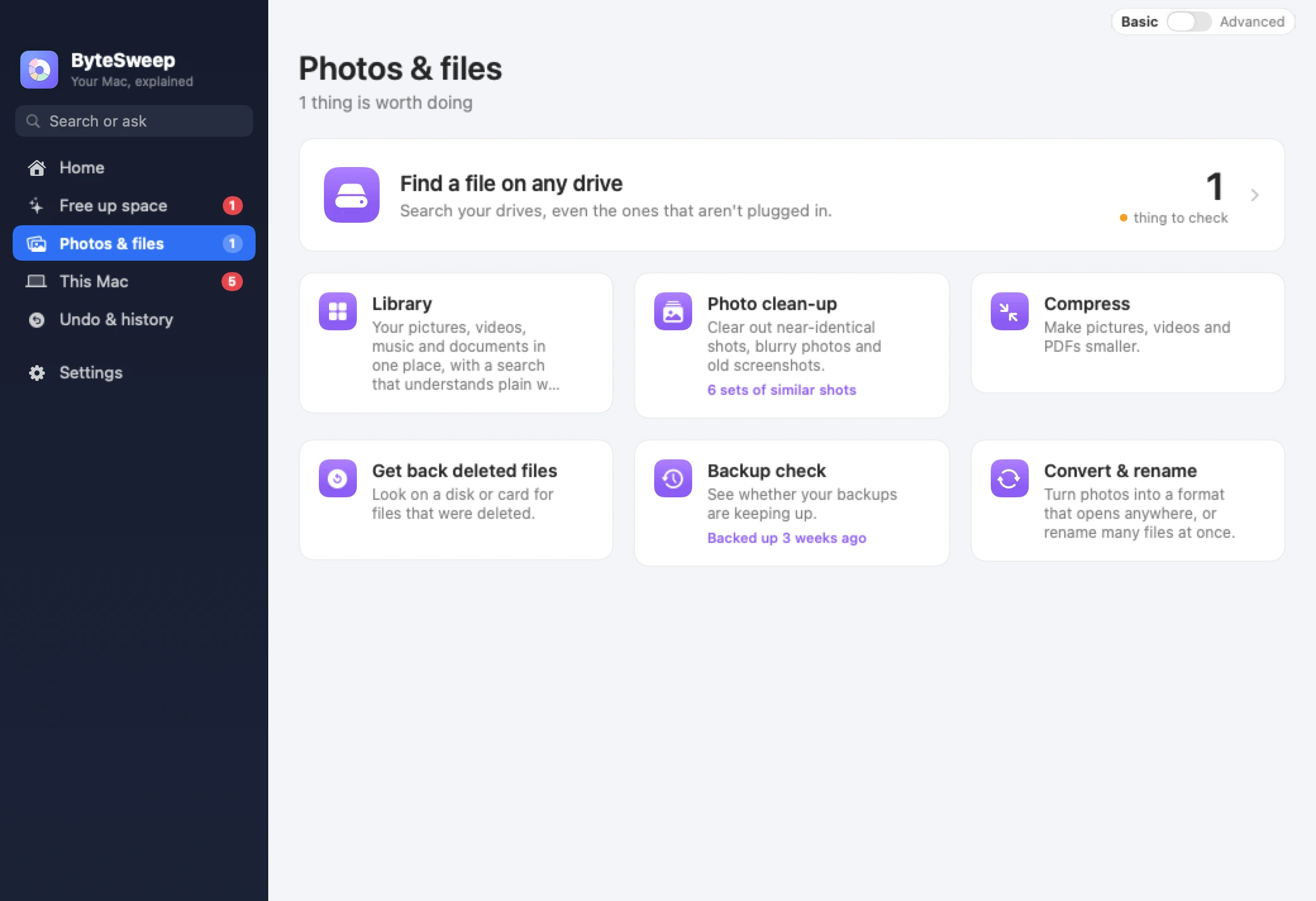
Photos and files, sorted
Years of photos and files pile up. ByteSweep helps you go through them.
- Blurry shots, near-identical photos and old screenshots
- Duplicate photos, files and whole folders
- Smaller videos and photos, without deleting them
- Photos changed to a format that opens anywhere
- Rarely used files moved to an external drive, and still easy to find
Everything at a glance
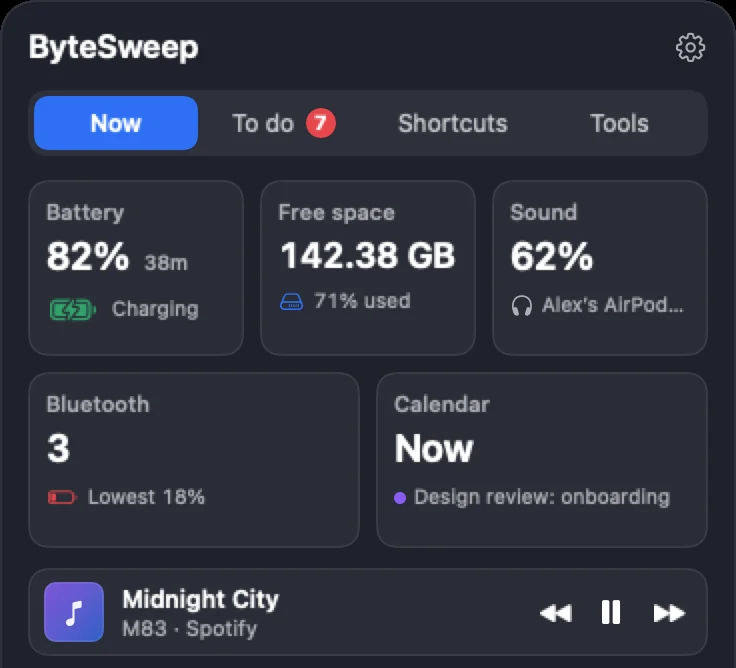
On a MacBook, move the pointer to the notch and a small panel opens. Other Macs show it in the menu bar. On Windows it is a bar at the top of the screen and in the tray.
- Battery, free space, what is playing and the volume
- The batteries of your headphones, keyboard and mouse
- Your calendar for today
- A shelf for files, a clipboard history, timers and a mirror
- Off until you switch it on
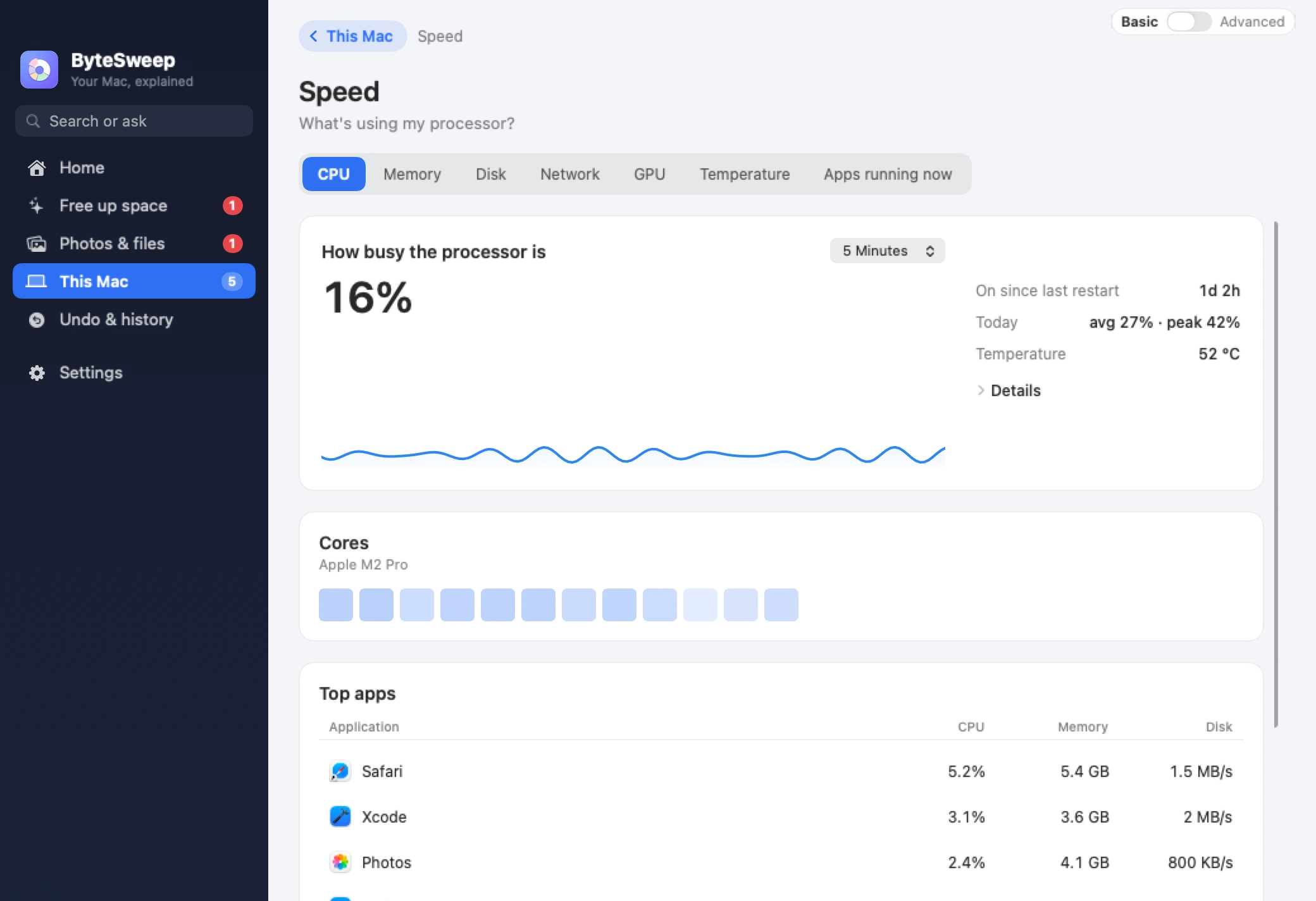
Know what your computer is doing
Right now, and over time. The history stays on your computer.
- How busy the processor is
- How much memory your open apps use
- How full the disk is, and how warm the computer runs
- Which apps use the internet, and which work hardest
- A warning before the disk fills or a battery runs low
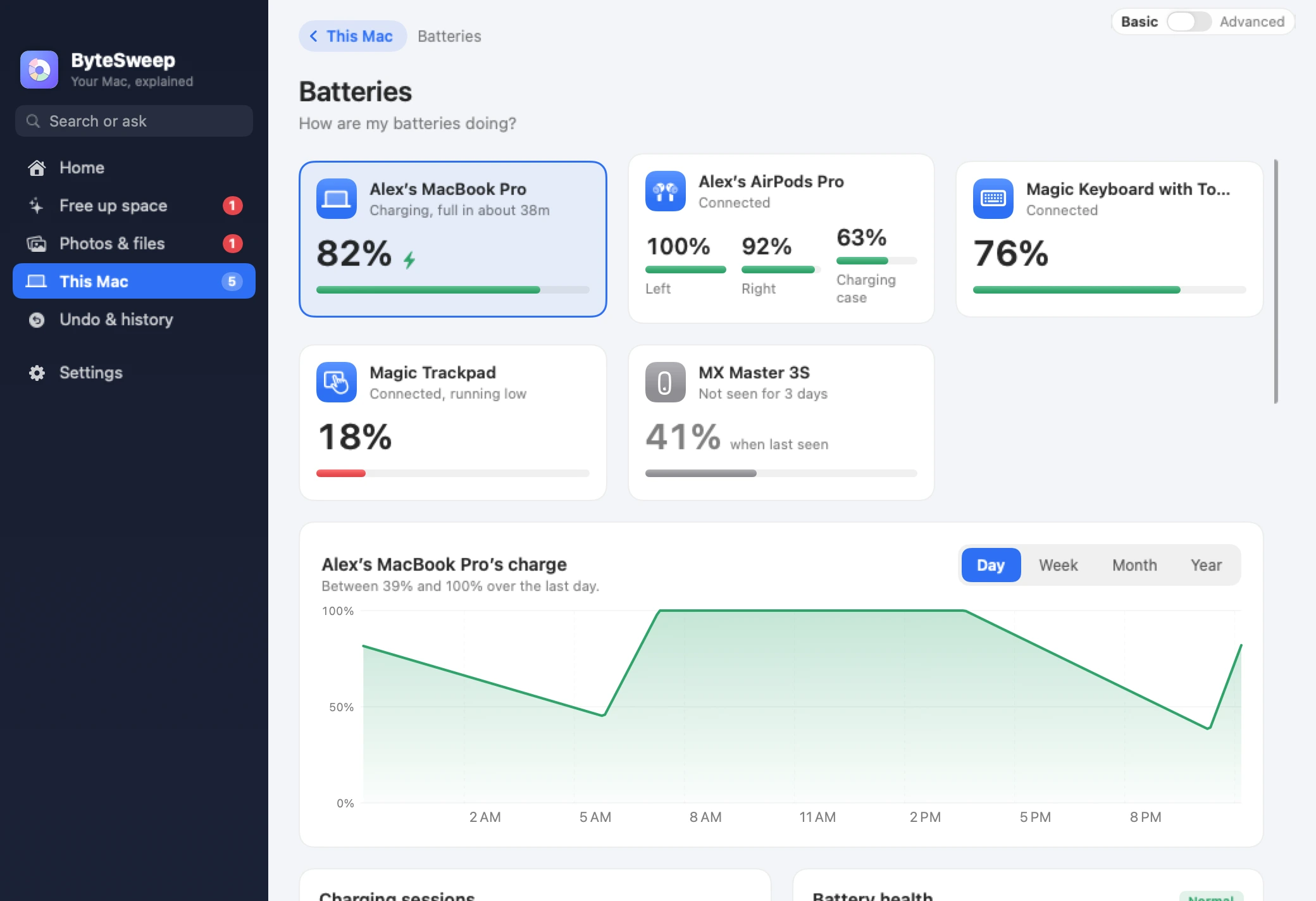
Small check-ups
A few quick checks that keep a computer in good shape.
- Every battery you own, in one place
- What opens when your computer starts
- Updates for your apps, and a monthly check-up
- A check that your backups are running
- A step-by-step guide before you sell or give away a computer
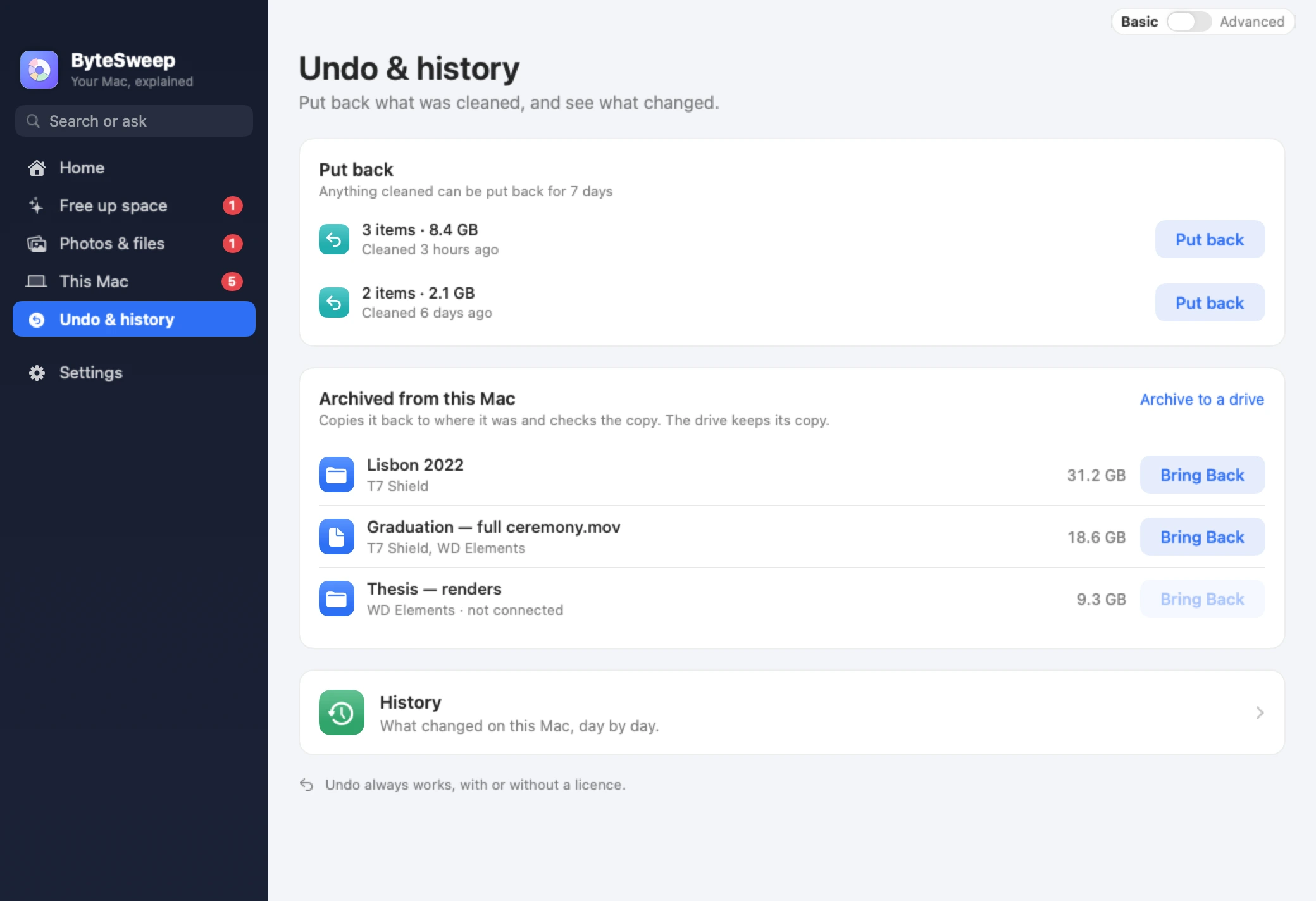
Undo, for 7 days
Anything ByteSweep cleans on a Mac or PC can be put back for 7 days, from one place. Putting things back is always free.
And on your iPhone
ByteSweep Storage Cleaner tidies your photo library, on the phone itself.
- Swipe left to let a photo go, right to keep it
- Similar and duplicate photos, grouped
- Large videos and old screenshots
- Big videos shrunk and kept, not deleted
- Duplicate contacts
- No account. Nothing is uploaded.
One price. No subscription.
For a Mac or a Windows PC. Free to try for 3 days.
The iPhone app is separate. It is free to download, and every feature works free within your first 1 GB and 30 items, with one in-app purchase for more.
Is it safe?
- Your files stay on your device. No account, and nothing is uploaded.
- The Mac app is checked by Apple. The Windows app comes from the Microsoft Store, and the iPhone app from the App Store.
- On Mac and Windows, anything cleaned can be put back for 7 days.
Questions
Will it delete my photos?
Only the ones you pick yourself.
What if I remove the wrong thing?
On Mac and Windows, put it back within 7 days. That is always free.
Is it free to try?
Yes. On Mac and Windows, for 3 days. After that, cleaning needs a licence, bought once. On iPhone, every feature works free within your first 1 GB and 30 items.
Does one licence cover everything?
One licence covers one computer, Mac or Windows. The iPhone app has its own purchase in the App Store.

Start with a free scan.
macOS 14 or later. Windows 10 and 11. iPhone.