 Bytesweep
 1. Ask Docker for its own totals
Always start here. It splits images, containers, volumes and build cache, and tells you how much of each is reclaimable.
docker system df -vDocker Desktop keeps everything in one file. It grows every time you build, and deleting images does not make it smaller. Here is why, and what actually reclaims the space.
Free to download and scan. Cleaning needs a licence: one payment per computer, Mac or Windows.
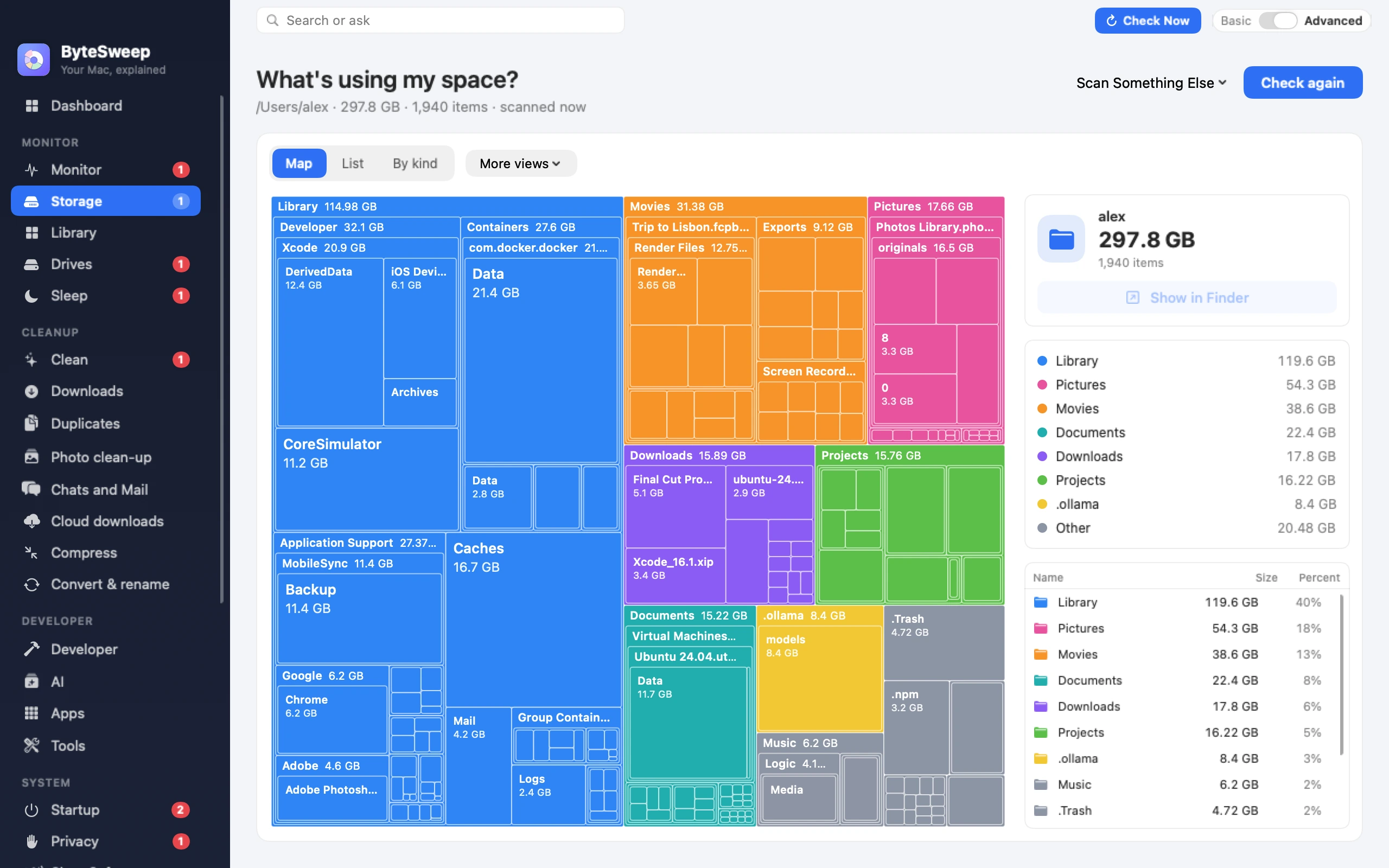
On a Mac, Docker Desktop keeps everything inside a Linux virtual machine, and that machine's entire disk is one sparse file:
~/Library/Containers/com.docker.docker/Data/vms/0/data/Docker.rawCheck its real size on disk — not its logical size, which is always the maximum you allowed Docker to use:
du -h -d0 ~/Library/Containers/com.docker.docker/Data/vms/0/data/Delete an image and the space comes free inside the virtual machine only. The file on your Mac stays as large as it was, because macOS has already handed it that much. Recent Docker Desktop versions issue TRIM from inside the VM, which lets macOS reclaim the freed blocks, but it happens on Docker's schedule rather than the moment you prune. Until then, docker system df reports gigabytes freed while the Finder reports no change at all.
In order: least destructive first.
Always start here. It splits images, containers, volumes and build cache, and tells you how much of each is reclaimable.
docker system df -vOn a machine that builds images regularly this is usually the biggest single item, and it is the safest to remove — it only makes the next build slower.
docker builder prune -aStopped containers, dangling images and unused networks:
docker system pruneAdd -a to also remove every image not used by a running container — that means re-pulling them later. Only add --volumes if you are certain: volumes are where databases keep their data, and that is the one command on this page that destroys something you cannot re-download.
Check what would actually go:
docker volume ls
docker volume ls -f dangling=trueAfter pruning, Docker Desktop has a supported way to return the freed blocks: Settings → Resources → Advanced → Disk usage, or quitting and reopening Docker Desktop, which triggers TRIM on start. Give it a minute and re-check the file size before deciding it did not work.
In Settings → Resources, the virtual disk limit is how large Docker.raw is permitted to grow. Reducing it does not free anything on its own, but it caps the problem. Raising it "just in case" is why the file reached 64 GB in the first place.
Settings → Troubleshoot → Clean / Purge data resets the VM's disk completely and returns the file to near zero. It deletes every image, container and volume you have. Use it when nothing else worked and you know what is in your volumes.
Do not delete Docker.raw in the Finder. It is not a cache file — it is the entire Docker installation's data, and removing it while Docker is running can leave the VM in a state that needs a reset anyway.
On the Mac where Docker reached 50 GB, Xcode's DerivedData and local AI models are usually close behind. If you are reclaiming space, it is worth measuring the whole disk once rather than fixing one thing at a time. The full list
Docker on Linux writes straight into /var/lib/docker, so a prune frees space immediately and none of the TRIM problem above applies. Linux disk cleanup
Not from the Finder, and not while Docker is running. That single file is every image, container and volume you have. If you genuinely want to start clean, use Docker Desktop's Troubleshoot → Clean / Purge data, which does the same thing in a way Docker knows about.
Because it freed 20 GB inside the VM's filesystem, not on your Mac. The file keeps its size until TRIM runs and macOS reclaims the blocks. Quitting and reopening Docker Desktop usually triggers it.
Only if you add --volumes. Without that flag it leaves volumes alone. With it, any volume not attached to a container goes, and a stopped database's volume counts as unattached.
There is no right answer, but on a machine with a handful of active projects, 15 to 25 GB is normal and 60 GB means the build cache has never been cleared. Check with docker system df -v before assuming it is images.
Shorter pieces that go deeper on one part of this guide.