 Bytesweep
 You can see both halves:
diskutil apfs list
df -h / /System/Volumes/Data
/ is the system volume: read-only, sealed, typically 10 to 15 GB depending on the macOS version. /System/Volumes/Data holds everything else, meaning your home folder, the apps you installed and everything you’ve ever made.
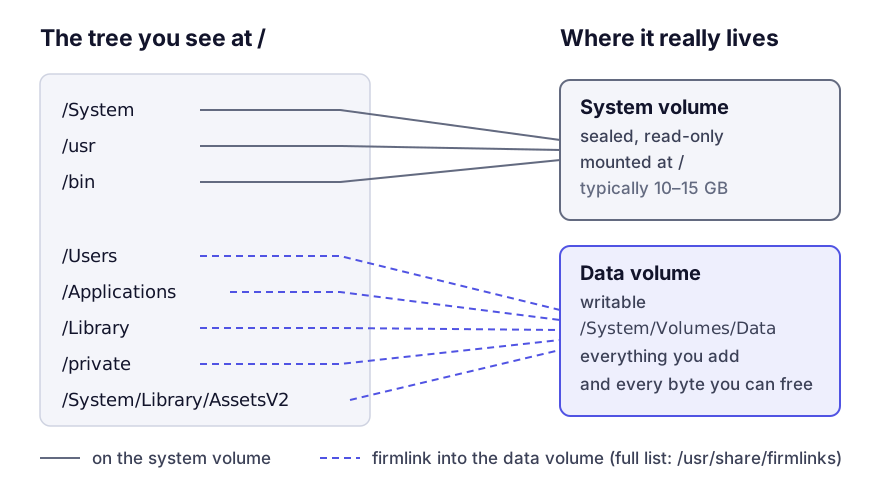
What the seal means for space
The seal is a hash over every file on the system volume, checked as the system reads it. Change one byte and the hash no longer matches. That’s why you can’t delete a language pack, a wallpaper or an unused printer driver from the system volume, even as root with SIP turned off: the volume is mounted read-only and anything that altered it would break the seal.
There is also nothing to gain. The system volume is exactly as big as the operating system it holds, and it doesn’t accumulate. Each update replaces it wholesale. People sometimes turn off the seal (csrutil authenticated-root disable, from Recovery) hoping to slim it down, and get nothing back but a Mac that can’t install updates normally.
Time Machine doesn’t back it up either, and doesn’t need to. It backs up the data volume, and a restore reinstalls the system from Apple.
Why your files seem to be counted twice
The paths the two volumes share are listed in a plain text file:
cat /usr/share/firmlinksBecause /Users, /Applications and the rest appear in both namespaces, a naive du -sh / walks from the system volume straight into the data volume and counts your home folder as part of the system. The total can come out larger than the disk. Keep du on one file system:
sudo du -xh -d 1 / 2>/dev/null | sort -h | tail-x makes du stop at the volume boundary. Forgetting it is the most common reason a du total doesn’t match df, alongside the deleted-but-open file covered in why df, du and the Finder disagree.
Old advice that no longer applies
Guides written before 2020 assumed one writable volume. On a current Mac, a lot of that advice is dead:
| Old advice | Status now |
|---|---|
| Delete unused language files from apps | Breaks code signing; system apps are read-only anyway |
Remove printer drivers from /Library/Printers | Almost nothing ships there any more; drivers are downloaded |
Trim /System/Library | Impossible: sealed volume |
| Delete system fonts you do not use | Impossible, and see font caches |
Clear /private/var/folders | Still possible, still a bad idea; the system manages it |
Everything still reclaimable is on the data volume: caches, developer build products, container images, model weights, old backups. The useful work was always in your home folder.
The snapshot macOS boots from
macOS doesn’t boot from the live system volume. It boots from a snapshot of it, and during an upgrade there are briefly two system snapshots. That’s part of why an update asks for far more free space than the download size; why a macOS update needs more space than it says goes through the rest of it.
diskutil apfs listSnapshots /You can’t delete the current one, since the Mac is running from it. It’s a different thing from the local snapshots on the data volume, which belong to Time Machine and can be thinned freely. Mixing the two up leads to deletions that fail with permission errors. What APFS snapshots are separates them.
What a fresh install costs before you add anything
Roughly, on a current release:
- 10 to 15 GB for the sealed system volume.
- 1 to 2 GB for Recovery, and several gigabytes for Preboot, which since macOS 13 also holds the system’s cryptexes.
- A few gigabytes of caches, dictionaries and Spotlight index built during first use.
- Whatever swap and sleep image the machine ends up needing.
So a new 256 GB MacBook with nothing installed shows well under 256 GB available, and all of the difference is accounted for. It isn’t a defect and no procedure reduces it. The recovery volume and the others sharing your container covers the smaller volumes.