 Bytesweep
 See the real number
journalctl --disk-usage
du -sh /var/log/journal
The two should agree closely. If du is much larger, look inside /var/log/journal for more than one machine-ID directory. A VM cloned from a template often carries one over from the template, and journald only manages the directory for the current machine ID.
To see whether growth is steady or came from one bad day, list the boots:
journalctl --list-boots | tail -20Vacuum it now
Three forms. The size one is what you usually want:
sudo journalctl --vacuum-size=200M    # keep at most 200 MB
sudo journalctl --vacuum-time=14d     # discard anything older than a fortnight
sudo journalctl --vacuum-files=5      # keep at most five journal files
All three act on archived journal files only. The file journald is writing to right now is never touched, so on a busy machine a vacuum leaves behind everything since the last rotation, which can be a few hundred megabytes. Rotate first and the vacuum can reach it:
sudo journalctl --rotate
sudo journalctl --vacuum-size=200M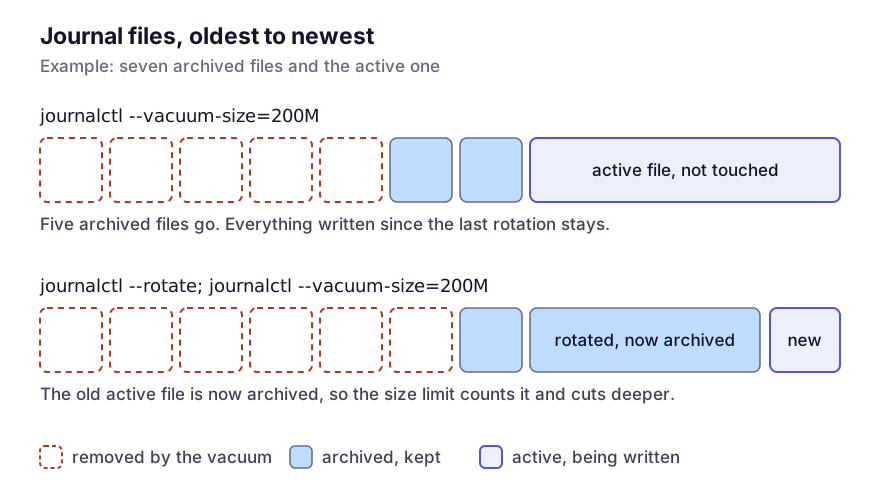
Do not delete files in /var/log/journal by hand. journald holds them open, so the space does not come back until the service restarts: the deleted-but-open-file trap from diagnosing a full root file system. The vacuum commands tell journald what you are doing.
Vacuuming throws log entries away; that is the whole point. Decide how far back you actually need to look before you pick a number.
Make it permanent
A vacuum is a one-off. The lasting fix lives in /etc/systemd/journald.conf:
[Journal]
SystemMaxUse=500M
SystemKeepFree=2G
SystemMaxFileSize=50M
MaxRetentionSec=1month
SystemMaxUse is the ceiling for the whole journal. Give it an absolute size and the percentage default no longer applies.
SystemKeepFree is the free space journald will not eat into. It protects the rest of the system when some service starts logging in a loop.
SystemMaxFileSize bounds each file, and that decides how finely a vacuum can cut. If the journal is a handful of enormous files, --vacuum-size has nothing small to remove, which is the other common reason a journal is still large after a vacuum.
MaxRetentionSec drops entries by age regardless of size.
Apply it and check:
sudo systemctl restart systemd-journald
journalctl --disk-usage
How low is too low? With remote logging, very low is fine. Without it, be careful: 50 MB on a busy server can be under an hour of logs, which is no help with something that happened overnight. And do not count on compression to rescue you. Compress= is already on by default for larger entries.
Whether it is on disk at all
That depends on Storage= and on whether /var/log/journal exists:
| Setting | Behaviour |
|---|---|
Storage=persistent | Always on disk, directory created if missing |
Storage=auto (default) | On disk if /var/log/journal exists, otherwise in memory |
Storage=volatile | Memory only, in /run/log/journal; gone at reboot |
Storage=none | Nothing stored; forwarding only |
For a container image or an appliance, volatile is often right and removes the problem entirely. On anything you might have to debug after a crash, keep it persistent and bounded.
When the journal is small and the disk is still full
Then the logs are somewhere else. Applications that write their own files instead of logging to journald land in /var/log, and those belong to logrotate; what grows in /var/log and how logrotate handles it is the other half. Core dumps are a third, separate store: /var/lib/systemd/coredump can hold gigabytes after one crashing process, and core dumps and /tmp deals with those.