 Bytesweep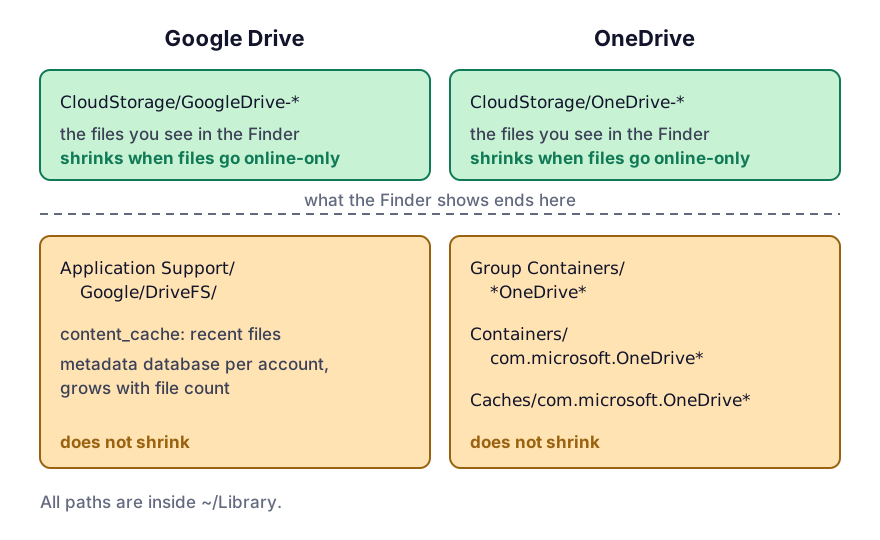
Measuring both
# Google Drive
ls ~/Library/CloudStorage/
du -sh ~/Library/Application\ Support/Google/DriveFS 2>/dev/null

# OneDrive
du -sh ~/Library/Group\ Containers/*OneDrive* 2>/dev/null
du -sh ~/Library/Containers/com.microsoft.OneDrive* 2>/dev/null
The folders in ~/Library/CloudStorage hold the file contents you can see. The rest is Library.
DriveFS is the one that surprises people. It holds Google Drive’s content cache and a metadata database for each account, and on an account with hundreds of thousands of files the database alone can run to several gigabytes. It’s not file content, so evicting files doesn’t touch it. Disconnecting an account can also leave its directory behind, so look inside DriveFS for folders named with an account ID you no longer use.
Google Drive: stream or mirror
Google Drive asks you to pick a mode for My Drive in its preferences:
- Stream files. Nothing is local until you open it, and recently used files stay in a cache.
- Mirror files. Everything is local, always. This is the mode that fills a laptop.
In either mode, right-click a file or folder and choose “Available offline” to pin it. Pinned items are never evicted, and a folder pinned by accident is a common reason a streaming setup still uses 200 GB. On the File Provider version macOS manages the cache, so the older setting that moved the local cache directory to another drive isn’t available.
OneDrive: Files On-Demand
On a Mac, OneDrive’s Files On-Demand is on. Right-click gives “Free up space” to evict and “Always keep on this device” to pin. To drop whole branches from this Mac, go to OneDrive’s settings, Account, then Choose folders.
On both clients, check for pinned folders before deciding online-only isn’t working. One pinned parent pins everything beneath it.
Clearing the caches
Quit the app first, in both cases, and only once Google Drive shows nothing left to upload: files waiting to upload sit in its content cache, and deleting it then loses them for good.
# Google Drive content cache
rm -rf ~/Library/Application\ Support/Google/DriveFS/*/content_cache

# OneDrive cache
rm -rf ~/Library/Caches/com.microsoft.OneDrive*
Both are rebuilt. The first few files you open afterwards will be slower, and Google Drive spends a while re-reading metadata on its next launch.
Don’t delete the whole DriveFS directory to save time. It contains the account database, and removing it forces a full re-scan of the account, which on a large Drive takes hours and on a slow connection can take days.
Uninstalling either app leaves the sync folder behind. Remove the account inside the app first, then uninstall.
Why the folder never matches the account
Usually all of these at once:
- Shared drives and “Shared with me” content can be mounted locally but counted differently by the web interface.
- Google Docs, Sheets and Slides aren’t files you can download as-is. On disk each one is a small link file that opens the document in a browser, while in the account it counts toward your storage quota. A Drive that’s mostly documents is almost nothing locally.
- Online-only content has a size in the Finder and no blocks on disk, so
duandls -ldisagree. That disagreement is also how you find it, as telling online-only from local files shows.
What’s online-only isn’t backed up
This applies to every sync client equally. Time Machine copies what’s on the disk, and an online-only file has no blocks to copy. If the account is deleted, or an administrator removes your access to a work OneDrive, your local backup won’t have those files.
That’s no reason to avoid online-only. It’s a reason to know which of your files exist in exactly one place, which what to back up before any cleanup walks through. Dropbox has its own version of the cache problem, and Optimise Mac Storage is Apple’s take on the same trade.
Keep reading
- Dropbox online-only files and the space they still useDropbox can keep files in the cloud and show them locally, but the placeholders, the cache and the old-version store all cost real disk. Where each lives, how to make files online-only in bulk, and what the hidden cache holds.
- What “Optimise Mac Storage” really does to your filesThe iCloud setting that quietly evicts your files to the cloud, the rules macOS uses to choose them, why it often frees nothing when you need it to, and how to tell what is actually on your disk.