 Bytesweep
 That last point matters more than any command here. The usual reaction to “it didn’t work” is to delete more, and that’s how a routine clean-up ends with a folder you wanted gone.
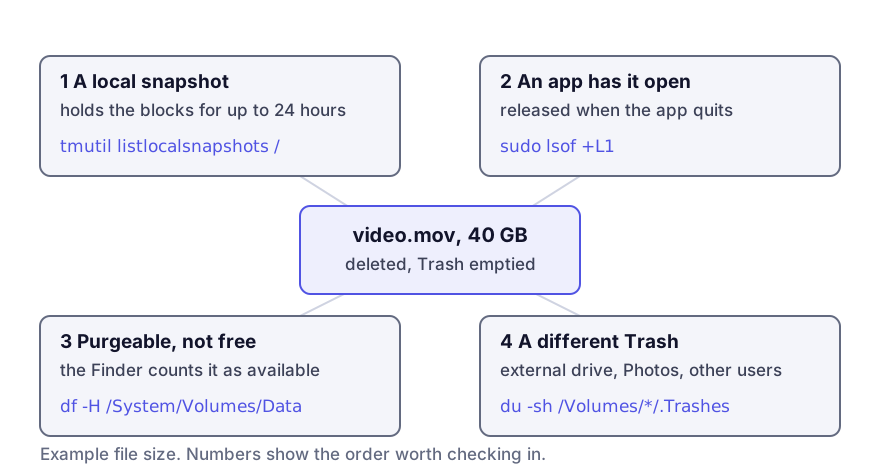
A snapshot still points at the blocks
This is the common one. When Time Machine is set up, macOS takes an APFS snapshot of the internal volume every hour, and a snapshot keeps every block that existed when it was taken. Delete a file that was there at that moment and its blocks stay allocated until the snapshot expires, up to 24 hours later.
tmutil listlocalsnapshots /A non-empty list is almost certainly your answer. Thinning returns the space at once:
tmutil thinlocalsnapshots / 21474836480 4Before you thin, read how local snapshots work and how to thin them safely, which covers the one you shouldn’t delete. What an APFS snapshot actually is explains why the blocks are held. macOS also takes one-off snapshots around system updates, so a Mac without Time Machine can occasionally show one too.
If you can wait a day, you don’t need to do anything at all.
An app still has the file open
Deleting a file removes its name from the directory. The blocks are released when the last process holding the file open lets go. An app with a 20 GB log or database open keeps every byte allocated long after the file has vanished from the Finder.
On macOS, lsof lists these as open files with a link count of zero:
sudo lsof +L1Quit the app it names, or restart. Linux has the same trap, described in diagnosing a full root file system, and it’s much of the reason a restart so often “fixes” a full disk.
The Finder is counting purgeable space
The Finder’s “available” figure is free space plus purgeable space. df reports only what’s actually free:
df -H /System/Volumes/DataSo the Finder’s number can sit still while real free space has gone up, or the other way round. A large gap between the two means purgeable space, and purgeable space and how to force macOS to release it has the remedies. The reliable one is to create real pressure with a large temporary file.
It went into a different Trash
Emptying the Trash from the Dock empties your Trash on the startup disk. There are others:
.Trasheson each external drive, which holds files deleted from that drive. Empty the Trash with the drive connected.- A network volume’s trash, on some servers.
- Other user accounts' Trash, on a shared Mac.
- iCloud Drive’s Recently Deleted, which keeps files for 30 days. That’s about your iCloud storage, not your disk.
sudo du -sh /Volumes/*/.Trashes ~/.Trash 2>/dev/nullPhotos is the other one people miss. Its Recently Deleted album lives inside the library and keeps deleted photos for 30 days, so removing pictures frees nothing until you empty that album. It catches people out when trimming a large Photos library.
Using Delete Immediately (Option-Command-Delete) instead of the Trash doesn’t change any of this. It skips the Trash folder, but a snapshot holds the blocks just the same.
Which to check first
The order above is the order I’d check: snapshots, then lsof +L1, then the df versus Finder gap, then the other Trashes. If none of them explains it, restart: that closes every open file, and it gives macOS a quiet moment to settle its purgeable accounting.
Between df, tmutil listlocalsnapshots and lsof, you can see every case above. Find out which one you’re in before you touch anything else. The space is usually on its way back already.
Keep reading
- Purgeable space on a Mac, and how to force it backPurgeable is space macOS believes it can reclaim but has not. What goes into it, why the Finder counts it as available when nothing else does, and the reliable ways to make macOS actually release it.
- Time Machine keeps snapshots on your Mac, not just the backup drivemacOS takes hourly snapshots of your internal disk whether or not a backup drive is attached, and they commonly hold 10 to 80 GB. How to list them, how to thin them, and which one you must not delete.
- “Your startup disk is almost full” on a Mac: what to doThe macOS warning appears only when a few gigabytes are left, which is late. Here is the order to work in, the four folders that are usually the whole answer, and what to do if the disk is already too full to delete anything.