 Bytesweep
 Where the pairs come from
| Action | What you end up with |
|---|---|
| Import over USB with Transfer to Mac or PC set to Automatic | Often JPEG on the Mac, HEIC still on the phone |
| Export from Photos as “Most Compatible” | JPEG copy outside the library |
| Attach to Mail or a messaging app | JPEG in a cache or in Downloads |
| Edit in an app without HEIC support | JPEG working copy beside the original |
| Upload to a service, then re-download | JPEG, usually recompressed and stripped of metadata |
The last row is the worst. What comes back is smaller, lower quality and missing the capture date and location, and because it looks like a perfectly good photo it’s often the copy people keep.
AirDrop between Apple devices normally sends the HEIC as it is, so it’s not a common source of pairs on its own. The JPEG usually arrives later, when the picture is shared onward.
Why duplicate finders report nothing
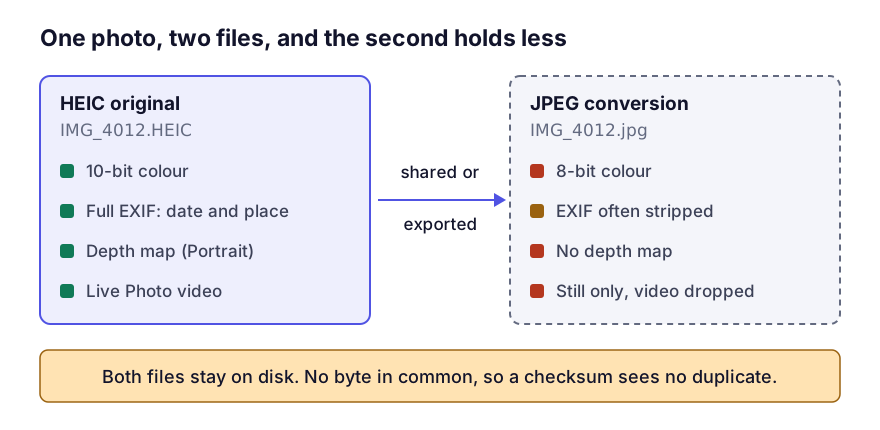
The two files share no bytes. HEIC stores the image with HEVC intra-frame compression; JPEG uses the DCT scheme standardised in 1992. The same picture encoded both ways gives two unrelated files of different sizes, so a checksum tool correctly reports zero duplicates. That’s why exact duplicate detection finds nothing here and perceptual comparison finds nearly all of it.
Don’t read anything into which file is bigger, either. HEIC needs less space than JPEG for the same visual quality, so a JPEG larger than its HEIC original is normal and doesn’t mean it’s the better picture.
Finding the pairs from the terminal
The strongest signal is the capture timestamp, which survives conversion along most paths. Two files with the same DateTimeOriginal, to the second, are almost always the same photograph.
# needs exiftool: brew install exiftool
exiftool -q -r -DateTimeOriginal -FileName -FileSize -p '$DateTimeOriginal|$FileName|$FileSize' ~/Pictures ~/Downloads ~/Desktop 2>/dev/null \
  | sort | awk -F'|' '{ if ($1 == prev) print prevline"\n"$0; prev=$1; prevline=$0 }'
Without exiftool, filenames get you a long way, because conversion usually keeps the stem:
find ~ -iname '*.heic' | while read -r f; do
  base="${f%.*}"
  [ -e "$base.jpg" ] || [ -e "$base.JPG" ] || [ -e "$base.jpeg" ] && echo "PAIR: $f"
done
Neither is exhaustive. A photo that went through a messaging service comes back as something like IMG-20260413-WA0007.jpg, with no link to the original’s name and often no timestamp. For those, only visual comparison works.
Inside the Photos library, use the Duplicates album instead. Photos compares more than bytes, so it catches many format pairs as well as double imports. It can’t see loose copies in Downloads, and you shouldn’t point the commands above into the library package.
Keep the HEIC, usually
Almost always the HEIC, and not only because it’s smaller:
- A HEIC is typically as good as or better than the JPEG made from it, and that JPEG has been through a second lossy encode.
- HEIC can hold 10-bit colour; JPEG is 8-bit.
- Conversions through messaging and web services routinely strip EXIF, and a photo that has lost its date is one your library can’t sort.
- Portrait-mode depth maps don’t survive the conversion, and a Live Photo keeps its still but loses the short video that goes with it. No file-size comparison shows you that loss.
The exception is a JPEG you edited after converting it. It holds work the HEIC doesn’t, so it’s the keeper whatever the format.
Before deleting any JPEG, check whether it’s the exact file you sent someone or published. If a client has that file, keeping it is worth more than the 3 MB.
Converting the whole collection to one format with sips or exiftool is possible and rarely worth it. HEIC to JPEG loses quality, and JPEG to HEIC doesn’t win any back.
Stopping new pairs
Two iPhone settings do most of the work:
- Settings, Apps, Photos (Settings, Photos before iOS 18), Transfer to Mac or PC: choose Keep Originals instead of Automatic. Automatic converts on transfer; Keep Originals sends the HEIC.
- Settings, Camera, Formats: High Efficiency shoots HEIC. Most Compatible shoots JPEG instead, which avoids pairs at the cost of bigger files.
That second setting is a real trade-off. If you send most of your photos to people on Windows and Android, shooting JPEG removes a whole source of duplication in exchange for bigger files. If you mostly stay among Apple devices, High Efficiency with Keep Originals is clearly better.
Neither setting changes what happens inside the Photos library, which keeps its own originals and renditions by its own rules. What is inside a Photos library covers those.
Keep reading
- Duplicate photos and similar photos are different problemsA hash finds exact copies and nothing else. Perceptual comparison finds the burst shots, re-saves and resized exports that actually fill a photo library, with a false-positive rate you have to manage.
- Finding duplicate files on a Mac without installing anythingDuplicates are found by size, then by hash, then by eye — in that order, because each stage is cheaper than the next. The shell commands that do it, what they miss, and the rules that stop you deleting the wrong copy.