 Bytesweep
 Measure before you delete anything, so you know which of these is yours:
du -sh /var/cache/apt/archives
dpkg -l 'linux-image-*' | grep '^ii'
du -sh /var/lib/snapd 2>/dev/null
journalctl --disk-usage
du -sh /var/log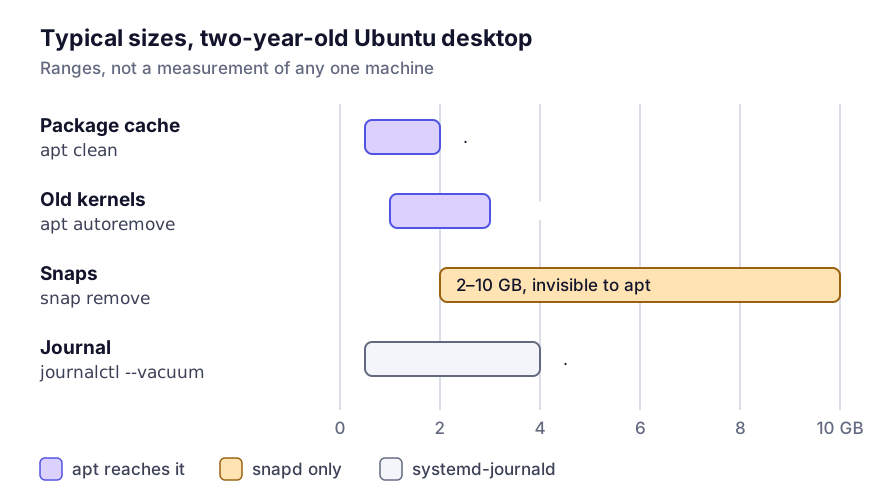
Old kernels come first
Each installed kernel is an image, an initramfs and a modules tree, 200 to 400 MB together. Ubuntu keeps the one you are running, the newest, and the one before it, and autoremove takes the rest. The catch is that it only takes kernels installed as dependencies. Anything marked as manually installed is skipped, which is how machines end up with eight of them.
uname -r                                    # the one you are running
dpkg -l 'linux-image-*' | grep '^ii'        # everything installed
sudo apt autoremove --purge
If the old ones survive that, mark them as automatic and run it again. The pattern below matches 5.x kernels; current Ubuntu releases ship 6.x, so adjust it to what dpkg -l showed you:
sudo apt-mark auto 'linux-image-5.*'
sudo apt autoremove --purge
Never remove the kernel uname -r reports, and keep one older one as a fallback. A machine with exactly one kernel and a failed update needs a rescue disk.
Two kernels is the right number: the running one and one previous. Ubuntu’s default is already close to that when nothing has been marked manual.
autoremove can also offer to remove something you use. That happens when the package came in as a dependency of something you have since removed and nothing marks it as wanted. sudo apt-mark manual <package> settles it for good.
Remove is not purge
This is where the space hides on long-lived machines. apt remove deletes the program and leaves its configuration in /etc; apt purge deletes both. Packages that were removed but not purged show as rc in dpkg -l:
dpkg -l | awk '/^rc/ { print $2 }'
dpkg -l | awk '/^rc/ { print $2 }' | xargs -r sudo apt purge -y
The configuration files are small. What matters is that some packages keep data directories under /var/lib that only a purge removes, and a database server removed but not purged can leave tens of gigabytes there. That data is gone for good once purged, so look first:
sudo du -sh /var/lib/* 2>/dev/null | sort -h | tail -15The package cache itself
sudo apt clean          # remove every downloaded .deb
sudo apt autoclean      # remove only those no longer downloadable
clean is safe whenever no other apt operation is running. It only deletes downloaded archives, never installed software, and it leaves the package lists in /var/lib/apt/lists alone, so apt update is unaffected. The only cost is downloading a package again if you reinstall it. I would not bother with autoclean; the distinction rarely matters.
Snaps, which apt knows nothing about
Snap keeps older revisions of every installed snap so that snap revert works. On a desktop the default is two revisions in total, the active one and one disabled, and for a browser or an IDE each revision is hundreds of megabytes.
snap list --all | awk '/disabled/ { print $1, $3 }'On an Ubuntu desktop this is often the largest item on the list. Snap revisions and how to bound them covers removing the disabled ones.
The rest of the machine
What remains is the same on any distribution: the journal, in bounding the systemd journal; /var/log proper, in what grows there and how logrotate handles it; and Docker, if it is installed, which often outweighs everything above combined.
As one block:
sudo apt clean
sudo apt autoremove --purge
sudo journalctl --vacuum-size=200M
sudo snap set system refresh.retain=2
docker system df
The refresh.retain line only matters if someone raised the setting; 2 is already the desktop default. The last line is a report on purpose. A Docker prune on a machine with running services deserves more thought than a one-liner, and what each prune flag deletes sets that out.
Keep reading
- / is full on Linux — the first five commands to runA full root file system takes down services before it takes down your desktop. The order to diagnose it in, the deleted-but-open-file trap that hides gigabytes, and what is safe to remove on any distribution.
- The systemd journal is bigger than you think: bounding itjournald defaults to using up to ten per cent of the file system, capped at 4 GB, and nobody chose that number. How to see the real size, vacuum it safely, and set a permanent cap that survives reboots.