 Bytesweep
 Once that clicks, most of the odd disk-space behaviour on a Mac stops being odd.
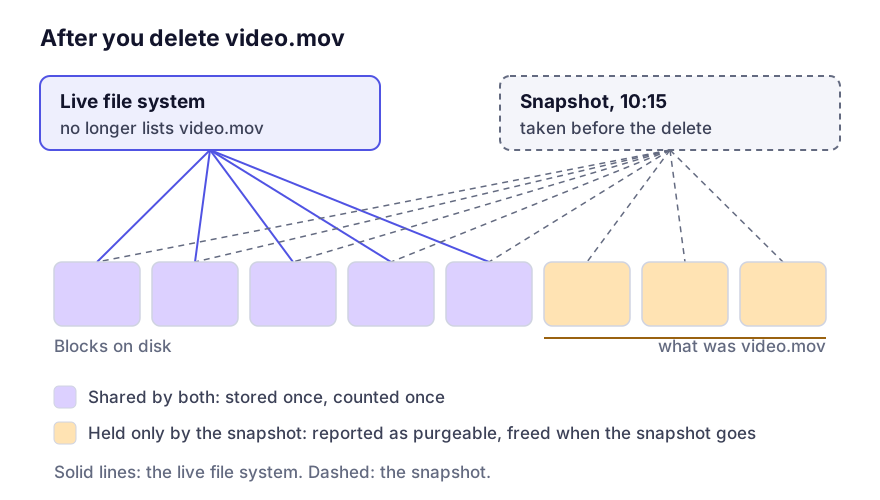
Why nobody can tell you how big a snapshot is
A snapshot shares nearly all of its blocks with the live file system, so “how big is it” has no single answer. What you can ask is how much space deleting it would return, and that depends on which blocks only it holds. Delete two overlapping snapshots one at a time and the first deletion may free almost nothing while the second frees a lot.
That’s why Disk Utility (View, Show APFS Snapshots) gives each snapshot a Private Size, the space only that snapshot holds, and a Cumulative Size, rather than one figure. Even the Private Size changes as the snapshots around it come and go.
Listing them
There are two lists, and they don’t match:
tmutil listlocalsnapshots /                        # Time Machine's, by timestamp
diskutil apfs listSnapshots /System/Volumes/Data   # every snapshot on the data volume
diskutil apfs listSnapshots /                      # the system volume's
tmutil only knows about the snapshots Time Machine made. diskutil shows all of them, including ones from installers, from macOS during an upgrade, and from cloning tools like Carbon Copy Cloner or SuperDuper.
Anything in the diskutil list that isn’t in the tmutil list belongs to something else. Cloning software takes a snapshot to get a consistent source and removes it when the copy finishes. Delete it mid-clone and the clone fails.
The snapshot on / is a different animal. macOS boots from a snapshot of the sealed system volume, which is part of how the seal is enforced, so you can’t delete it and shouldn’t try. The sealed system volume explains why it exists.
What this does to your free space
You’ll usually meet snapshots as one of these puzzles.
You delete a big file and nothing changes. The blocks are still referenced, and the space comes back when the snapshot expires, which for Time Machine’s local ones can be up to 24 hours. Thinning local snapshots gets it back sooner.
The Finder and df disagree. Space held only by snapshots is counted as purgeable. The Finder adds purgeable space to “available”; df doesn’t. Purgeable space goes through the accounting.
Re-saving a large file costs double for a while. Export a 40 GB video over itself with a snapshot in place and both versions exist until the snapshot goes. Video editors run into this all the time.
Deleting one properly
Use Time Machine’s own tooling for Time Machine’s snapshots, because it keeps its bookkeeping straight:
tmutil thinlocalsnapshots / 21474836480 4
tmutil deletelocalsnapshots 2026-10-08-101500
For a snapshot that isn’t Time Machine’s, and whose owner you’re sure is finished with it:
diskutil apfs deleteSnapshot /System/Volumes/Data -uuid <UUID>Find out who made a snapshot before you delete it. One named after your backup software is that software’s working state, not spare space.
A snapshot is not a backup
It lives on the same disk as the data it points at. If the drive dies, the snapshot dies with it. It protects you from deleting a file by mistake, for as long as it exists, and from nothing else: not drive failure, not theft, not corruption that takes the container down.
Keep a real backup on separate hardware. And be aware that a file iCloud has evicted isn’t in your local backup either.
Questions
Can I get a file back out of a snapshot?
Yes. mount_apfs -s <snapshot> /System/Volumes/Data /tmp/snap mounts it read-only. For a file you deleted this morning, that’s often the quickest route back.
Why do I have forty of them?
Either a backup tool is taking its own on a schedule, or Time Machine hasn’t completed a backup in a while and the local snapshots aren’t being rolled up. Look in the diskutil list for names that aren’t timestamps.
Will a “free space eraser” remove them?
No. Snapshots are metadata references, not free blocks with old data in them, so those utilities never touch them.
Keep reading
- Time Machine keeps snapshots on your Mac, not just the backup drivemacOS takes hourly snapshots of your internal disk whether or not a backup drive is attached, and they commonly hold 10 to 80 GB. How to list them, how to thin them, and which one you must not delete.
- Purgeable space on a Mac, and how to force it backPurgeable is space macOS believes it can reclaim but has not. What goes into it, why the Finder counts it as available when nothing else does, and the reliable ways to make macOS actually release it.
- The sealed system volume, and the 12 GB you cannot touchmacOS keeps itself on a separate, cryptographically sealed, read-only volume. What that means for your free space, why it looks like duplicated data, and why every "delete system files" guide from before 2020 is now wrong.
- Swap files and the sleep image on a MacmacOS writes swap on demand and a full copy of RAM to disk before hibernating. On a 64 GB machine that is 64 GB of disk you did not allocate. What each is for and which can safely be changed.
- Why the macOS System Data number never adds upSystem Data is not a folder and not a category — it is a subtraction. Here is exactly what macOS puts in it, why the figure moves when you are not looking, and how to get a number you can act on.