 Bytesweep
 They’re written for different reasons, at different times, and only one of them is worth touching.
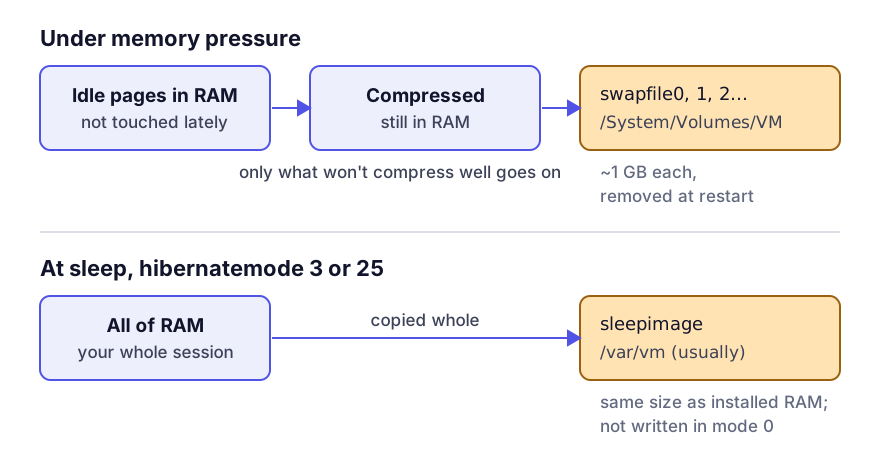
Swap: dynamic, and a symptom rather than a problem
There’s no swap partition on macOS and nothing pre-allocated. The kernel creates swapfile0, swapfile1 and so on as memory pressure demands, usually 1 GB each, and removes them when the pressure passes. They live on their own APFS volume:
ls -lh /System/Volumes/VM/
sudo du -sh /System/Volumes/VM/
Before anything reaches that volume, macOS compresses it. Pages that haven’t been touched recently are compressed in place in RAM, and only the ones that won’t compress well go to disk. That’s why an 8 GB Mac copes with workloads that once needed a much larger swap partition, and why swap size alone is a poor measure of how stretched the machine is. Ask the system directly:
sysctl vm.swapusage
memory_pressure
vm.swapusage gives total, used and free swap. memory_pressure gives the kernel’s own view. A few gigabytes of swap on a healthy machine is normal and looks after itself. Tens of gigabytes with pressure consistently high means something is using more memory than the Mac has, and the fix is fewer apps open or more RAM. Disk cleanup won’t help.
Swap files are removed at restart, which is one reason a reboot hands back several gigabytes on a Mac that’s been up for weeks. Heavy swapping is also not the SSD killer it’s sometimes made out to be: at normal usage wear levelling copes, and sustained swapping is a performance problem long before it’s an endurance one.
The sleep image: fixed, and the size of your RAM
When a Mac sleeps in a mode that includes hibernation, it writes the whole of RAM to a file called sleepimage, so it can restore your session if the battery runs flat. The file is therefore as large as the installed memory. Where it lives, and which mode the machine uses, are both in pmset:
pmset -g | grep -E 'hibernatemode|hibernatefile'The usual hibernatefile is /var/vm/sleepimage, on the data volume rather than beside the swap files. Some desktops print no hibernate settings at all.
| Mode | Behaviour | Sleep image |
|---|---|---|
| 0 | Sleep to RAM only | Not written |
| 3 | Sleep to RAM, also write to disk (default on laptops) | Full RAM size |
| 25 | Hibernate only, RAM powered down | Full RAM size |
Mode 3 is a sensible default: waking is instant because it resumes from RAM, and the disk copy is insurance against a dead battery. Apple silicon Macs handle this more efficiently than Intel ones did, and on current hardware changing the mode is rarely worth it.
Don’t just delete sleepimage. macOS recreates it at the next sleep, and removing it while the machine is asleep or about to sleep risks losing unsaved state. If you want the space, change the mode.
On a desktop that never runs on battery, you can trade the safety net for the disk:
sudo pmset -a hibernatemode 0
sudo rm /private/var/vm/sleepimage # only after setting mode 0(/private/var/vm and /var/vm are the same directory; use whatever path hibernatefile showed.) On a laptop I’d leave it alone. Losing an afternoon’s unsaved work to a flat battery costs more than 16 GB.
Why they swell System Data
Neither file belongs to a named storage category, so both fall into the System Data remainder along with snapshots and caches. On a 64 GB laptop in mode 3 that’s 64 GB of System Data before anything else is counted, which answers a good share of “why is System Data so big”; the rest is listed item by item in what is System Data on a Mac, and why that number never adds up explains why it moves.
Nor is either purgeable in the technical sense. macOS won’t release the sleep image under pressure the way it releases snapshots. What purgeable space actually covers draws that line.
Questions
Can I move swap to an external drive?
No, and it’d be a poor idea if you could. Swap has to be on a volume that’s present and fast from the moment the kernel starts using it.
Does more RAM mean more disk used?
For the sleep image, yes: it matches installed RAM. More RAM usually means less swap, though, so on a busy machine the net effect is often in your favour.
Why is my sleepimage 0 bytes, or missing?
Either the machine hasn’t hibernated since the file was last cleared, or hibernation is off (mode 0). macOS creates it lazily.
Keep reading
- Why the macOS System Data number never adds upSystem Data is not a folder and not a category — it is a subtraction. Here is exactly what macOS puts in it, why the figure moves when you are not looking, and how to get a number you can act on.
- Purgeable space on a Mac, and how to force it backPurgeable is space macOS believes it can reclaim but has not. What goes into it, why the Finder counts it as available when nothing else does, and the reliable ways to make macOS actually release it.
- APFS snapshots: the space you can’t see or easily deleteA snapshot is a frozen reference to every block on the volume at one moment. What that means for free space, why a snapshot has no single size, and how to read diskutil's snapshot list properly.
- The sealed system volume, and the 12 GB you cannot touchmacOS keeps itself on a separate, cryptographically sealed, read-only volume. What that means for your free space, why it looks like duplicated data, and why every "delete system files" guide from before 2020 is now wrong.