 Bytesweep
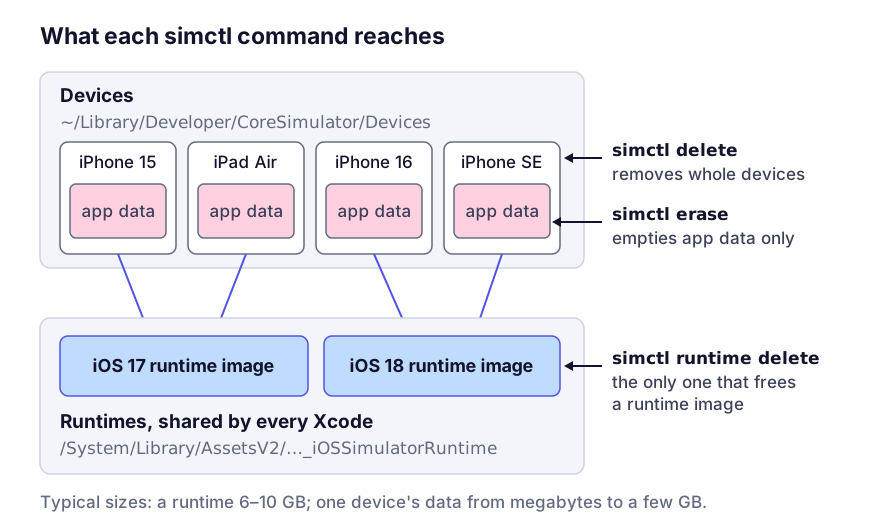
 Runtimes are the operating system images, one per iOS version, typically 6 to 10 GB each. Devices are simulated iPhones and iPads configured against a runtime, and each one has its own writable data directory with the apps you installed and everything they wrote.
Where each one lives
du -sh ~/Library/Developer/CoreSimulator/*
xcrun simctl runtime list
xcrun simctl list runtimes
Device data is in your home folder, under ~/Library/Developer/CoreSimulator/Devices. After a few years of testing different apps it’s commonly 20 to 40 GB, made of hundreds of installed app bundles and their sandboxes.
Runtimes are outside your home folder. Current macOS stores them as system assets under /System/Library/AssetsV2/com_apple_MobileAsset_iOSSimulatorRuntime, one disk image per downloaded iOS version, and mounts them into /Library/Developer/CoreSimulator/Volumes only while a simulator is using them, so du on that folder usually shows nothing. xcrun simctl runtime list prints each runtime with its size and where it lives. They’re installed system-wide so several Xcodes can share them, which also means that removing or upgrading Xcode leaves every old runtime exactly where it was.
The commands, from gentlest to biggest
Devices whose runtime no longer exists can’t boot anyway, so removing them is always safe:
xcrun simctl delete unavailableTo reset devices, shut them down and then either erase or delete them:
xcrun simctl shutdown all
xcrun simctl erase all        # wipe device contents, keep the devices
xcrun simctl delete all       # remove the devices entirely
erase is normally the one you want. It empties each device’s data directory, which is where the size is, and leaves the device list alone so your schemes keep pointing at something. It loses whatever those simulated devices had stored (databases, user defaults, downloaded content) and nothing else. Your source, schemes and build settings aren’t touched, and neither is any real device.
Removing a runtime is the big win:
xcrun simctl runtime list
xcrun simctl runtime delete <build-or-identifier>
If you’re not sure which identifier is which, use Xcode instead: Settings, then Components, lists the installed simulator runtimes with their sizes and a delete control.
Shut simulators down before deleting anything. Removing a booted device’s directory leaves simctl with a stale entry, and the fix is xcrun simctl delete unavailable plus a restart of CoreSimulatorService.
How many runtimes you actually need
The instinct is to keep every runtime in case some project needs it. The useful set is small:
- the latest runtime, which Xcode uses by default
- one matching your deployment target, to check the app still runs on the oldest version you support
- a beta runtime, while you’re testing against one
Everything else is a download away, so deleting a runtime costs bandwidth and a wait, not capability.
The device list has a similar habit. When a new runtime arrives, Xcode adds a device for each model. Deleting the models you never test on keeps the list short until the next runtime shows up and adds them back.
What simctl leaves behind
Two stores survive all of the above, and together they’re often several gigabytes:
~/Library/Developer/CoreSimulator/Caches/dyld, the shared cache built per runtime. Safe to delete; it regenerates the next time a simulator boots.~/Library/Logs/CoreSimulator, per-device logs that outlive the device.
What CoreSimulator keeps outside the Devices folder goes through them in detail.
While you’re in ~/Library/Developer, check the neighbours too. DerivedData and iOS DeviceSupport are often bigger than everything simulator-related put together.
Keep reading
- iOS DeviceSupport is 30 GB of iPhones you no longer ownXcode keeps a full symbol cache for every iOS version of every device ever plugged in, and never removes any of them. What the folder is for, when you need it, and how to clear it without breaking debugging.
- DerivedData: what Xcode keeps there and when to delete itDerivedData is usually the largest folder in a developer's home directory. What Xcode stores in it, why it never shrinks, when deleting it fixes a build, and the one part of it worth keeping.
- Xcode Archives and dSYMs: the one folder not to deleteArchives hold the exact binary you shipped and the symbol files that turn a user's crash report into a line number. They cannot be regenerated, and every cleanup guide tells you to delete them.