 Bytesweep
 Pick the file system before anything else
You make this choice once, and changing it later means copying everything off and reformatting.
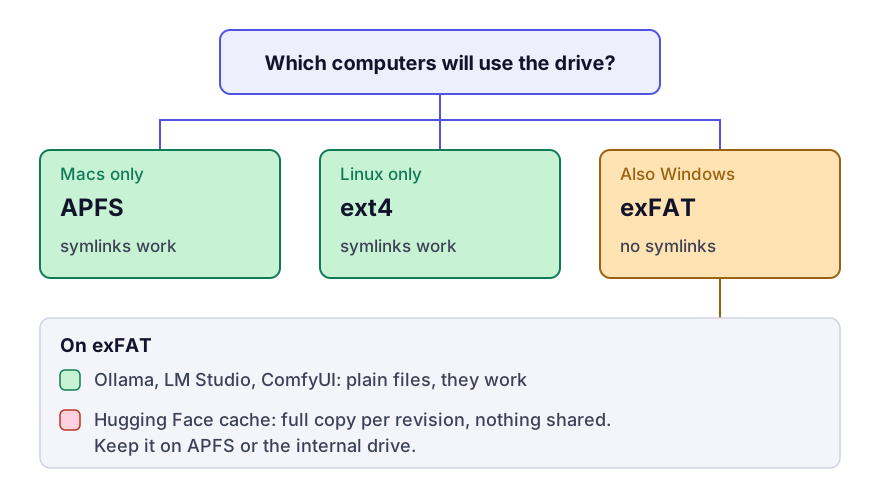
exFAT is the obvious choice for a drive shared between machines, and it’s wrong for the Hugging Face cache. That cache is built on symlinks: every snapshot directory is a set of links into a shared blob store. exFAT has no symlinks, so huggingface_hub falls back to storing a full copy of each file in every snapshot, and the sharing between revisions is gone. NTFS isn’t a way out on a Mac either, since macOS can read NTFS but not write it without extra software.
So: APFS for a drive only Macs will use, ext4 for one only Linux will use. If it has to work with Windows too, use exFAT and keep the Hugging Face cache somewhere else.
Ollama
Ollama reads OLLAMA_MODELS. The macOS desktop app doesn’t read your shell profile, so the variable has to go to launchd:
launchctl setenv OLLAMA_MODELS /Volumes/AI/ollama
mv ~/.ollama/models /Volumes/AI/ollama
# quit Ollama from the menu bar, then start it again
launchctl setenv doesn’t survive a restart of the Mac, so run it again after a reboot, or use the model location field in Settings if your version of the Ollama app has one.
On Linux with the systemd service, the variable goes in the unit:
sudo systemctl edit ollama
# [Service]
# Environment="OLLAMA_MODELS=/mnt/ai/ollama"
sudo chown -R ollama:ollama /mnt/ai/ollama
sudo systemctl restart ollama
Check with ollama list. If it comes back empty, Ollama is looking at the new location and the data hasn’t moved across. The layout of Ollama’s store covers what’s inside it.
Hugging Face
HF_HOME moves the whole Hugging Face directory, including the hub cache and the datasets cache, which defaults to $HF_HOME/datasets. Set HF_DATASETS_CACHE only if you want datasets somewhere different from models.
export HF_HOME=/Volumes/AI/huggingfaceCopy the existing cache with rsync -a, which keeps the symlinks as symlinks. A copy that follows links (cp -L, or rsync without -a or -l) writes a full copy of each blob for every snapshot that links to it.
rsync -a ~/.cache/huggingface/ /Volumes/AI/huggingface/Put the export in ~/.zshrc for your shells. Jupyter kernels and processes started by an IDE may not inherit it, and reading the Hugging Face cache shows how to check which location a process is actually using.
LM Studio, ComfyUI and the Python caches
LM Studio has a setting for it: open My Models and change the models folder there. That’s the whole procedure. Read the layout of its store first if you plan to share files with llama.cpp.
ComfyUI has no environment variable for its models. It reads extra_model_paths.yaml in its install directory, which can point each kind of model at a folder on the external drive. ComfyUI’s model sprawl goes through the file.
For the rest of the Python ecosystem, two variables do most of the work:
export TORCH_HOME=/Volumes/AI/torch          # torchvision and torch.hub weights
export XDG_CACHE_HOME=/Volumes/AI/cache      # a great many tools default under this
PyTorch and TensorFlow’s own caches lists which tools follow XDG_CACHE_HOME and which don’t.
Move one store at a time, largest first, and check the tool still works before you start the next. A symlink from the old location to the new one usually works too, but it can fail badly when an app replaces the directory instead of writing into it, so use the supported setting wherever there is one.
What you give up
Load time is the only cost, and it’s arithmetic: size divided by read speed. A 40 GB model read at 2.8 GB/s, which a good Thunderbolt SSD manages, takes about fifteen seconds. Over USB 3.2 at 1 GB/s it’s about forty. Once loaded, inference runs at the same speed as from the internal drive, because nothing more is being read. A spinning disk or a network share turns the load into minutes; gigabit Ethernet moves roughly 0.11 GB/s, so the same model takes around six minutes.
Plan for the drive not being attached. Each tool fails differently when its store is missing: Ollama shows an empty model list, Hugging Face tries to download everything again, and ComfyUI starts with no checkpoints. Check the drive is mounted before you conclude something deleted your models.
An SSD doesn’t spin down, but macOS can put an idle external disk to sleep depending on your energy settings. If loads fail intermittently after the machine has been idle, turn off the setting that puts disks to sleep.
Keep reading
- Where Ollama stores models on Mac, Linux and WindowsOllama's model store is often the largest folder on a developer's machine, and it lives somewhere no cleaner looks. The exact paths on macOS, Linux, Windows and Docker, how to find the one your install really uses, how to delete models safely and how to move the store to another drive.
- The Hugging Face cache keeps every revision you ever pulledThe hub cache is content-addressed, symlinked and versioned, which makes it efficient and makes it grow. How to read the structure, what hf cache prune and rm do, and why deleting blobs by hand breaks it.
- LM Studio’s model folder, and what it keeps besides weightsLM Studio stores models in a Hugging Face-shaped tree that is easy to read once you know the convention. Where it is on each platform, what the extra files are, and how to share one model store with other tools.